top of page

How to Set Up and Calibrate a CNC Tool Setter (Step-by-Step Guide) - MICRO DYNAMICS

  • 16 hours ago
  • 5 min read
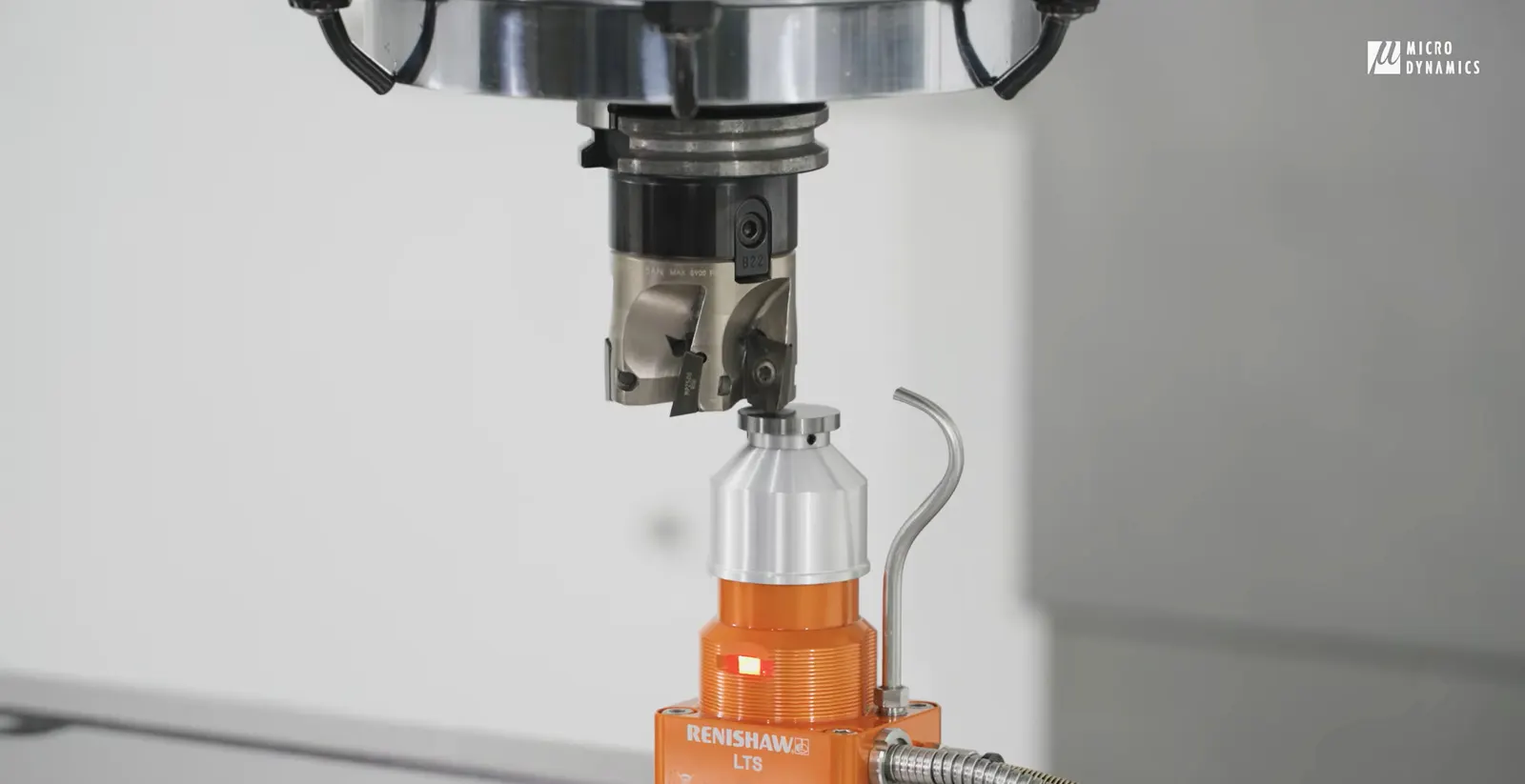
A Vertical Machining Center CNC Machine's Toll Getting Measured With A Renishaw Tool Setter

At MicroDynamics, we design our machines and HMI systems to remove friction from daily machining tasks. Tool setup is one of the most repetitive, and most critical, processes in any shop. That’s why our Tool Setup HMI function is built to make installation, calibration, and measurement simple, fast, and reliable.


This guide walks through how we approach tool setup, from hardware integration to automatic measurement and breakage detection, using real machine workflows.


Seamless Hardware Integration


Our tool setup workflow starts with a straightforward hardware connection.

Using a standard tool setter such as a Renishaw LTS, the system is installed directly on the machine table, typically at the rear for optimal accessibility and protection. The setup includes:


  • Air blast line to clean coolant and chips before measurement

  • Simple relay connection into the electrical cabinet

  • Direct integration into the I/O module, enabling expansion for additional devices
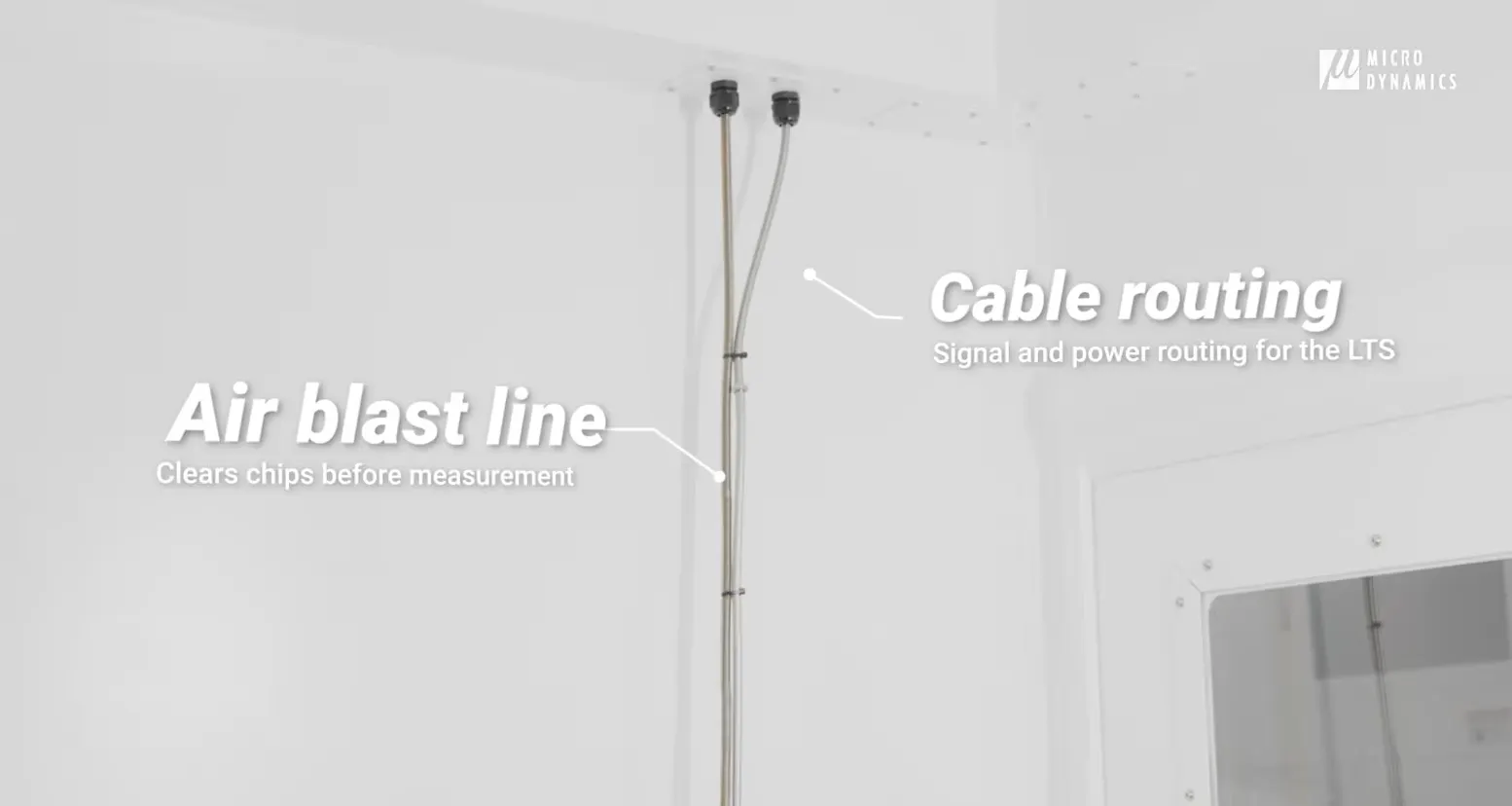

CNC Machine Air blast line and cable routing going through dedicated ports to the back of the machine to reach the rear panel
Air blast line and cable routing going through dedicated ports to the back of the machine to reach the rear panel
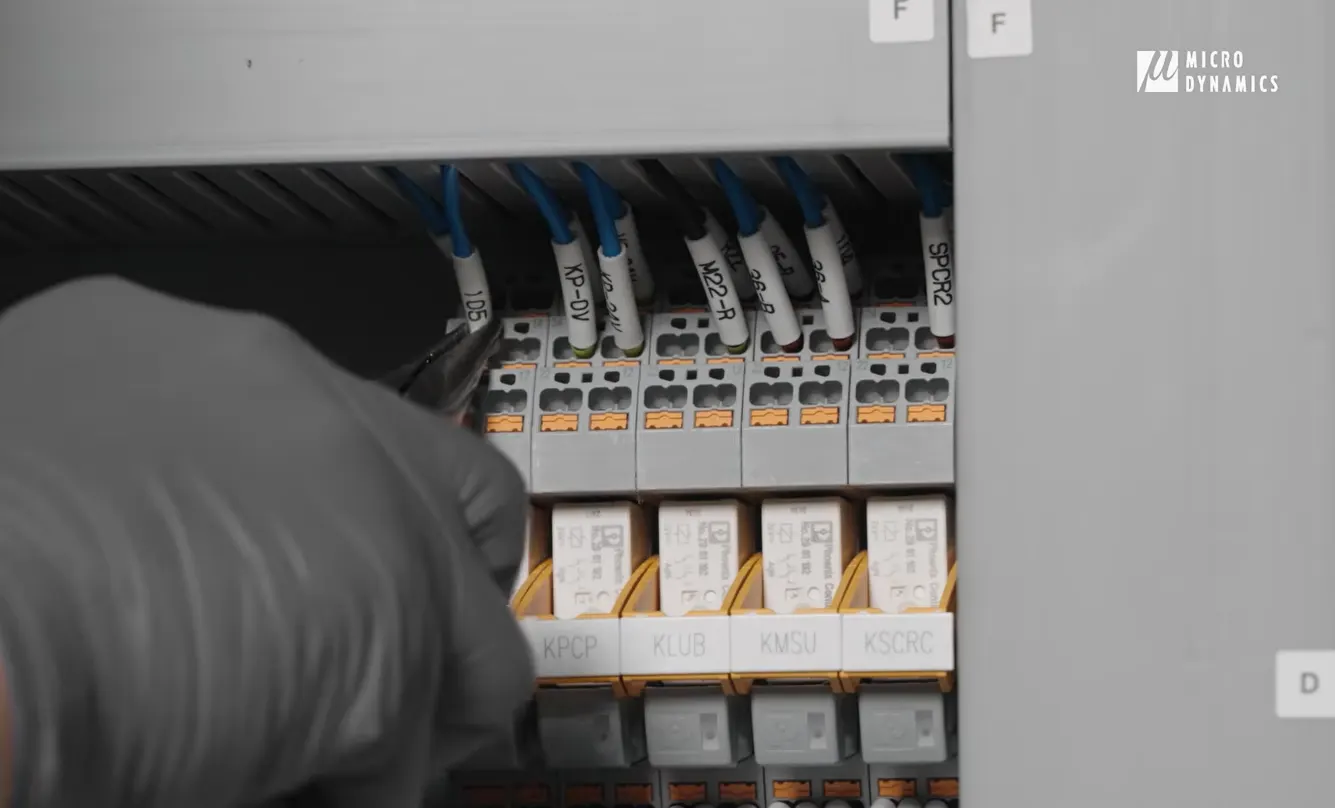
CNC Machine rear panel showing a relay being connected
Connecting the relay
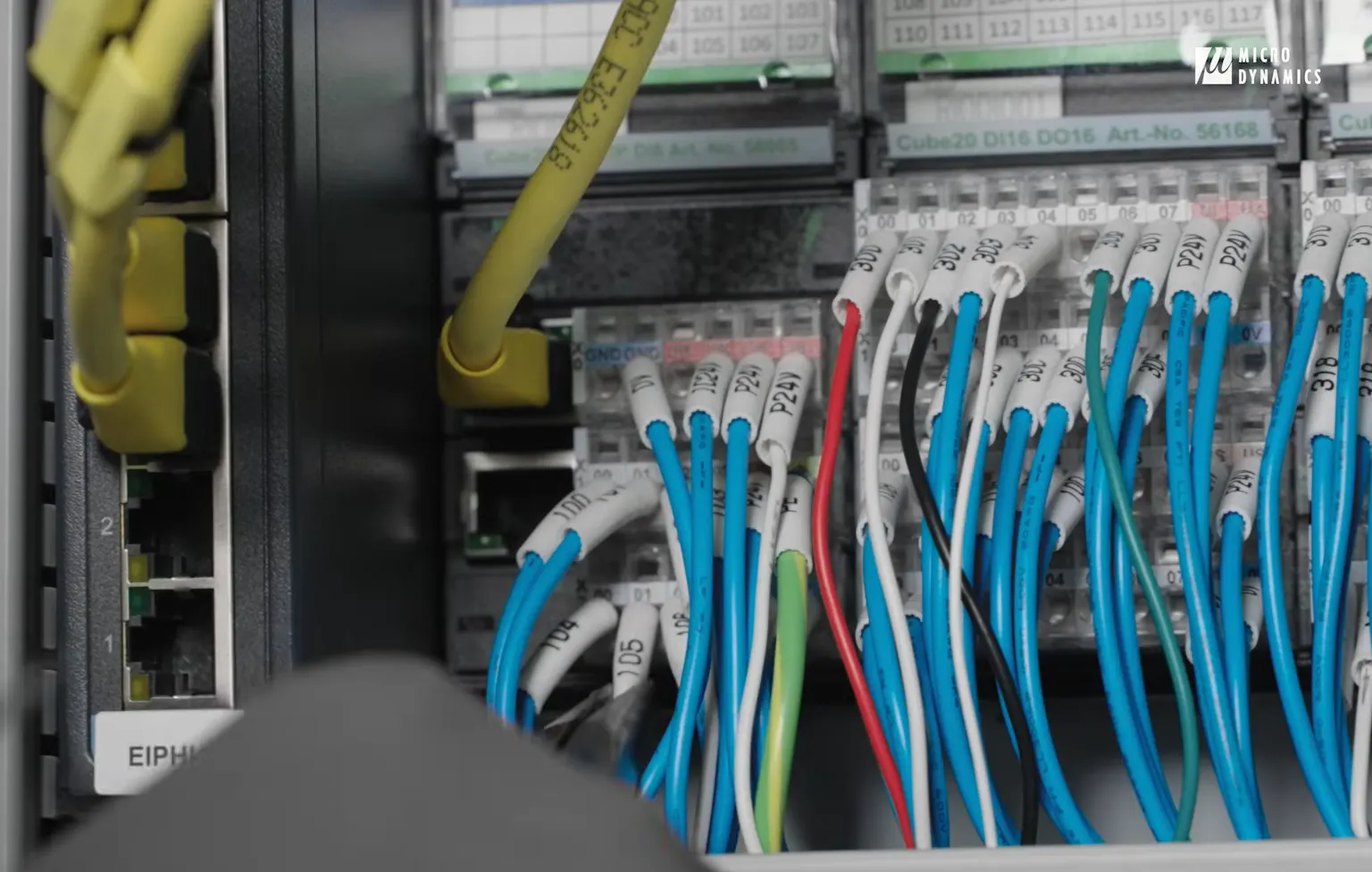
Adding IO to the rear panel of a CNC Machine
Connecting to the IO module

Because the electrical cabinet is cleanly organized and designed for accessibility, adding peripherals like a tool setter is fast and scalable.


HMI Configuration and Calibration


Once installed, everything is controlled through the MicroDynamics HMI.

Setup is handled directly inside the interface:


  • Enable probe and air blast via PLC parameters

  • Configure the skip signal for measurement detection

  • Verify signal response through live input monitoring

  • Perform a machine restart before calibration
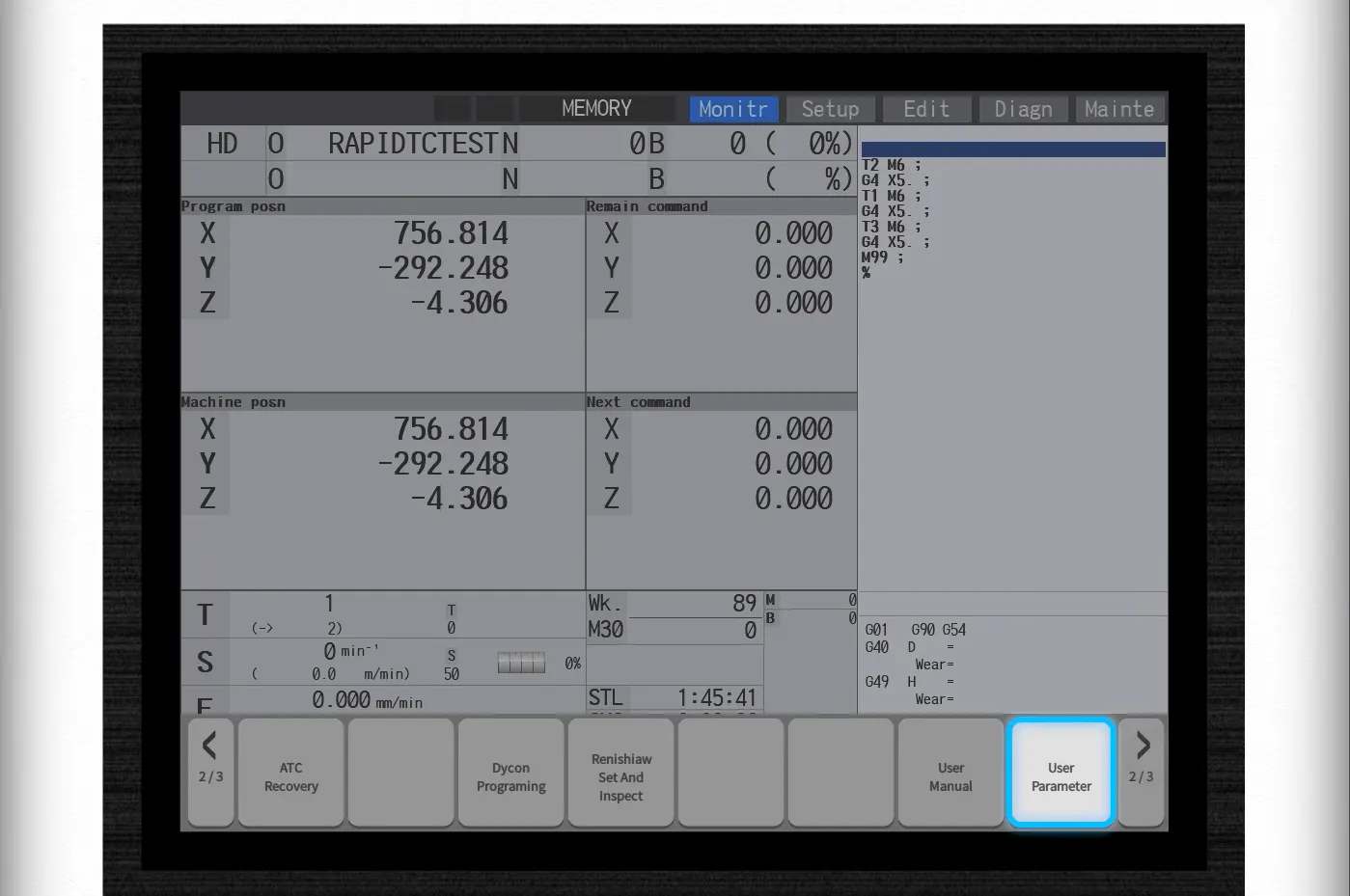

Go to User Parameter on Micro Dynamics HMI CNC Machine
Go to User Parameter
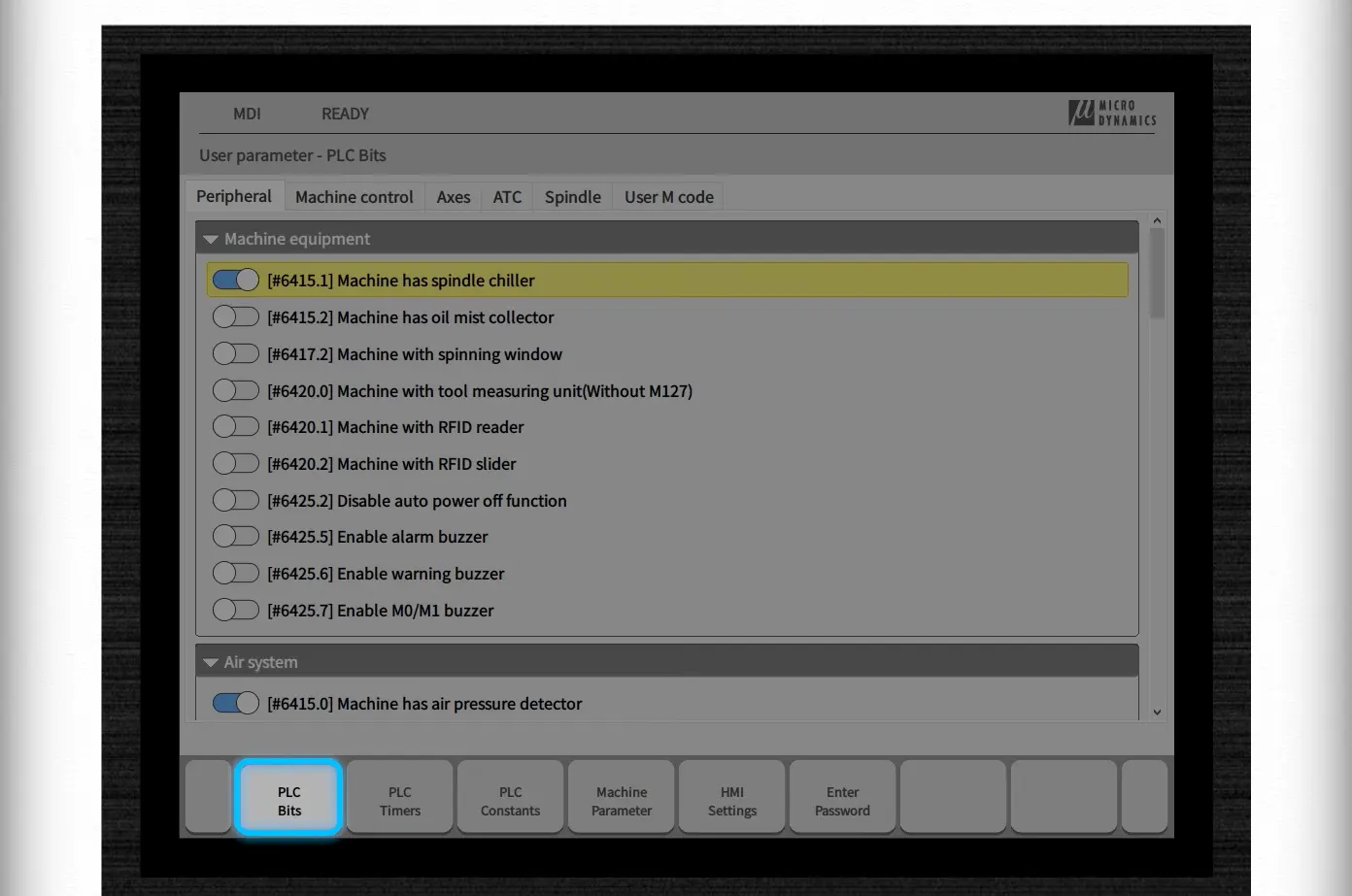
Go to peripheral -> PLC bits on Micro Dynamics HMI CNC Machine
Go to Peripheral -> PLC Bits
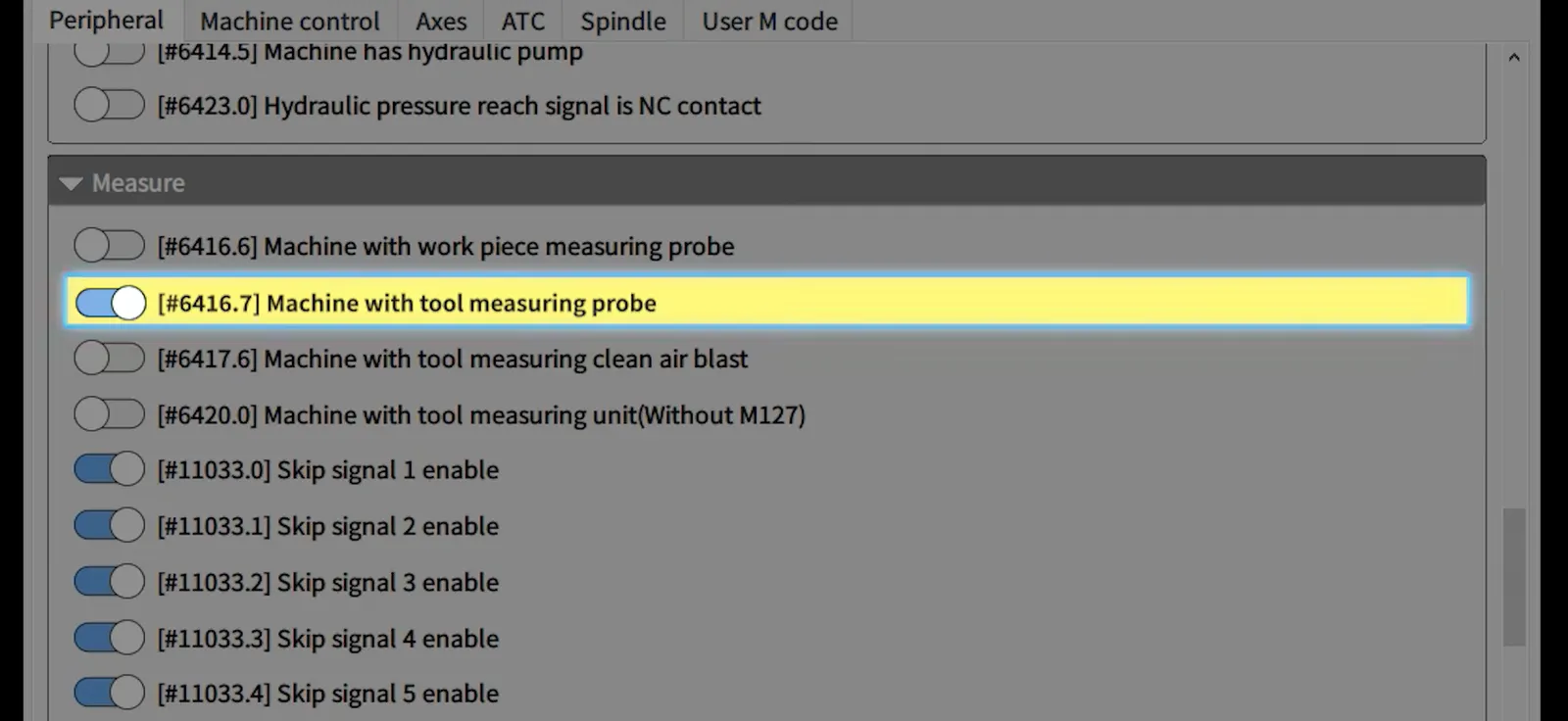
Enable "Machine with tool measuring probe" on Micro Dynamics HMI CNC Machine
Enable "Machine with tool measuring probe"
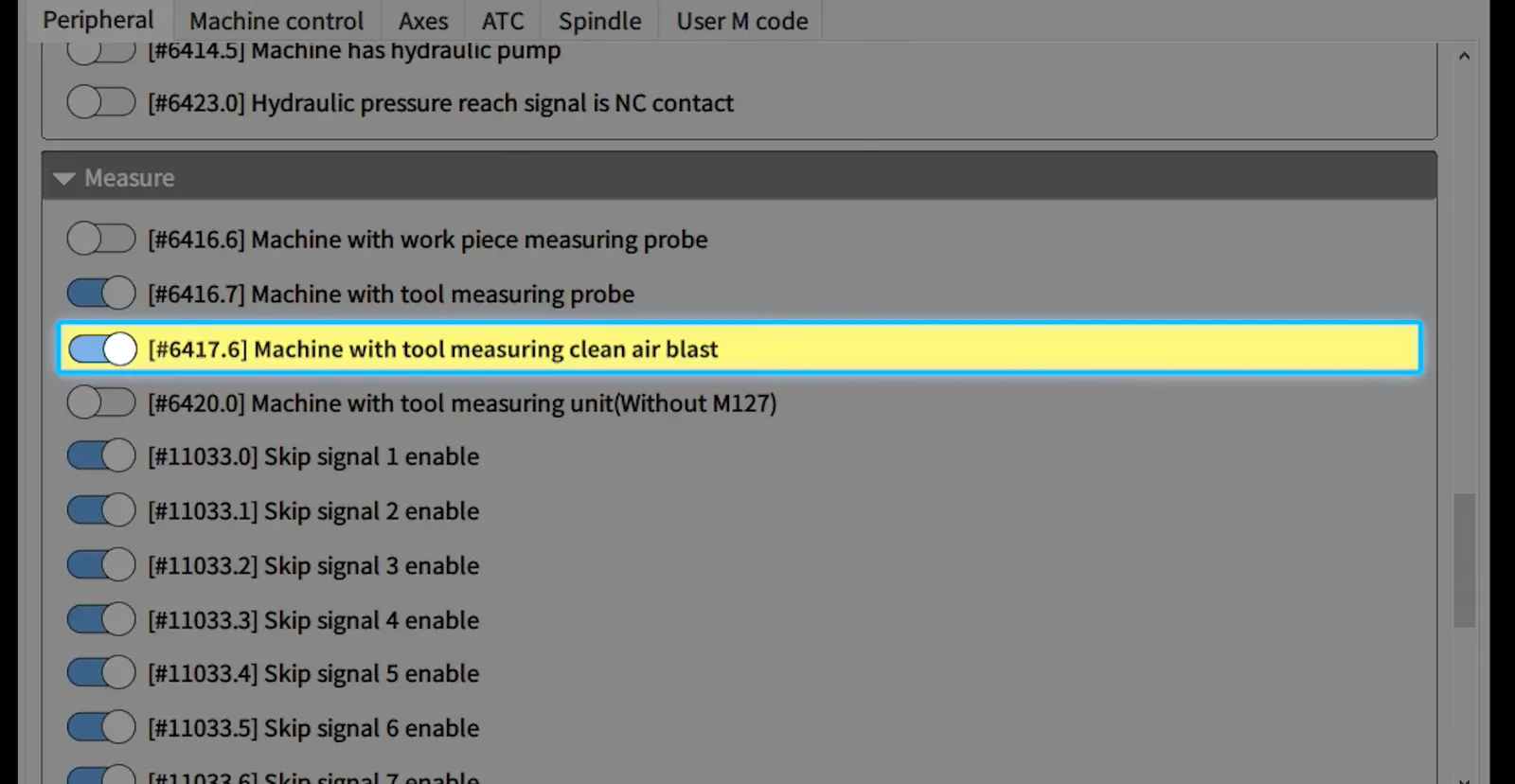
Enable "Machine with tool measuring clean air blast" on Micro Dynamics HMI CNC Machine
Enable "Machine with tool measuring clean air blast"
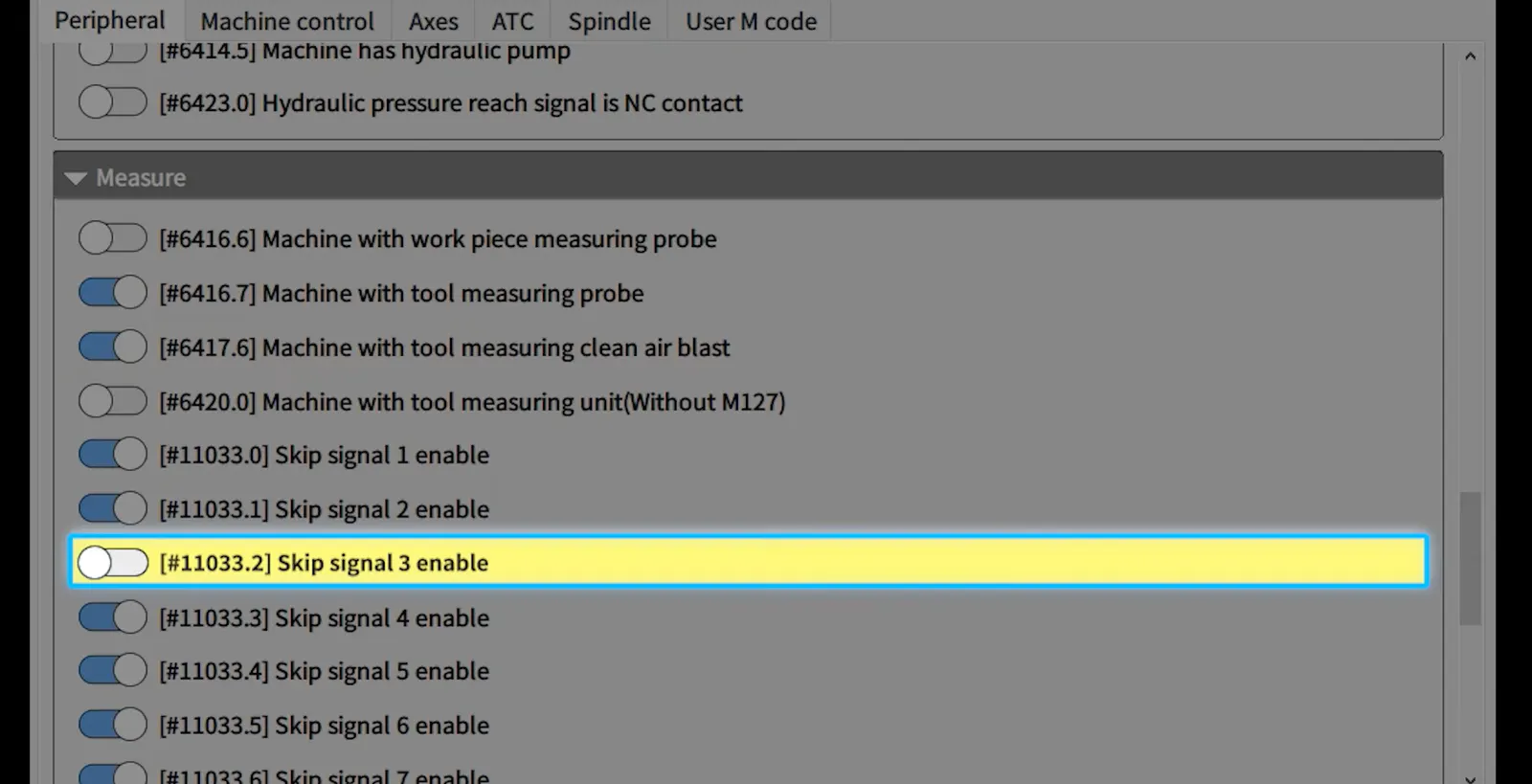
Disable "Skip signal 3 enable" on Micro Dynamics HMI CNC Machine
Disable "Skip signal 3 enable"
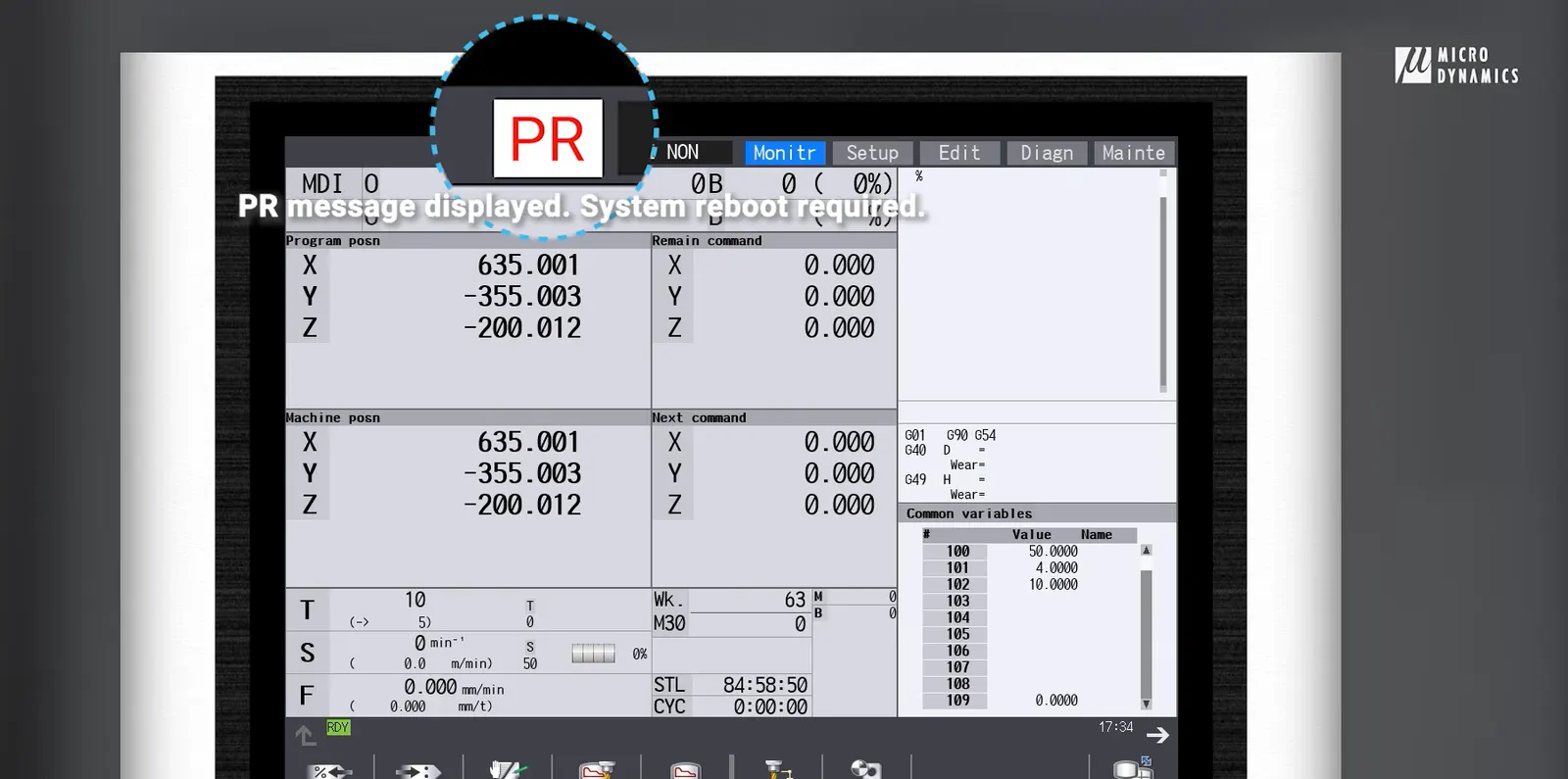
PR message is displayed on Micro Dynamics HMI CNC Machine
The PR message is displayed, notifying the user that a system reboot is required.
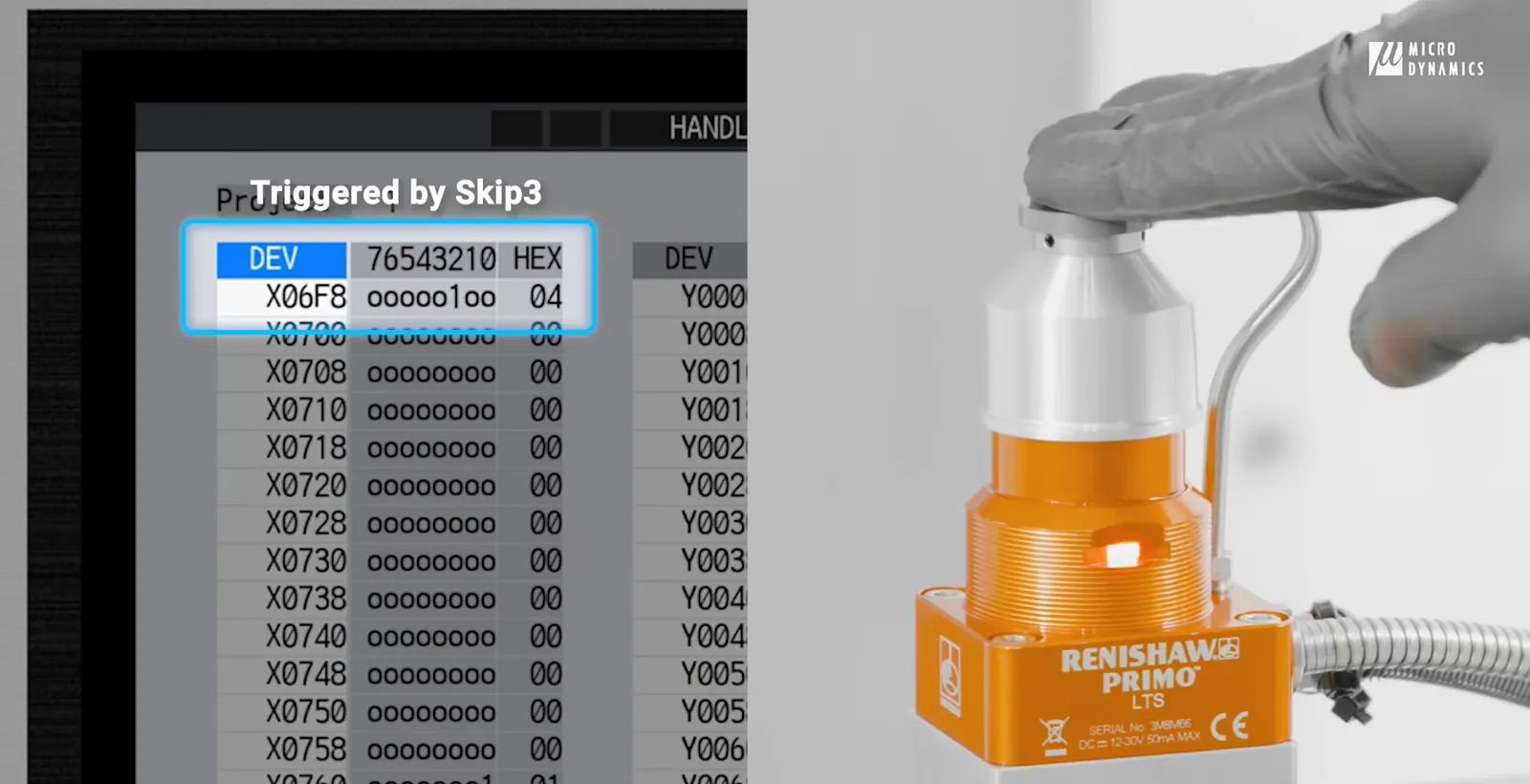
After restart, press the "Monitor" button on the HMI keypad, search for "X6F8" input, then touch the probe to confirm the skip signal goes to 1 on Micro Dynamics HMI CNC Machine
After restart, press the "Monitor" button on the HMI keypad, search for "X6F8" input, then touch the probe to confirm the skip signal goes to 1

Calibration is just as straightforward. Using a known reference tool (for example, a probe with a verified length), the system automatically aligns the tool setter using the HMI calibration function.
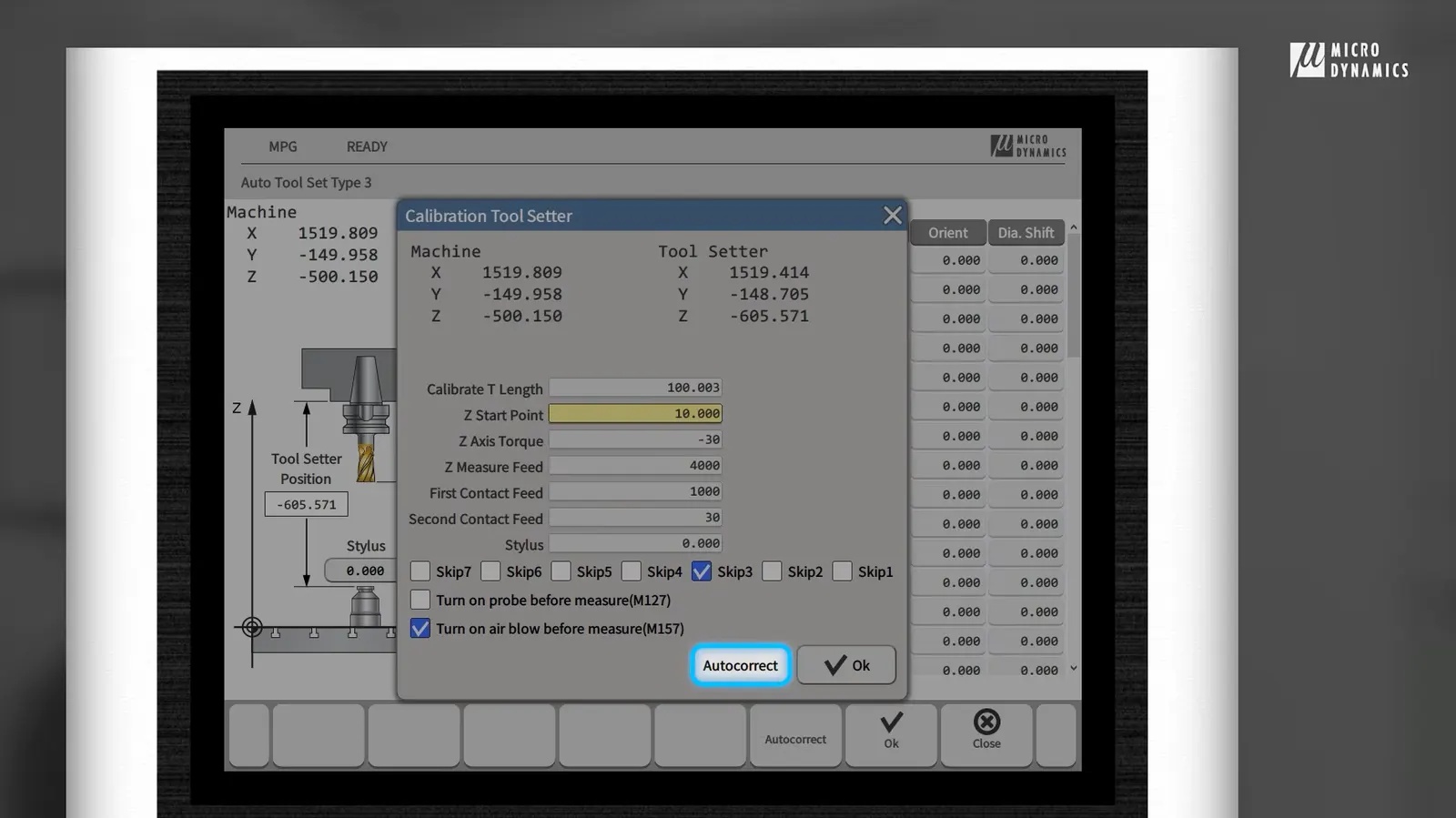

After positioning a known tool of known length to above 10mm of the LTS stylus, press the "Tool" button on the keypad, then press "Calibration Tool Setter" on the HMI screen, enter the known tool's length. enable "Skip3", enable "Turn on air blow before measure", and press "Autocorrect". Change mode to MDI, then simply Start. On Micro Dynamics HMI CNC Machine
After positioning a known tool of known length to above 10mm of the LTS stylus, press the "Tool" button on the keypad, then press "Calibration Tool Setter" on the HMI screen, enter the known tool's length. enable "Skip3", enable "Turn on air blow before measure", and press "Autocorrect". Change mode to MDI, then simply Start.

With a single “Autocorrect” command, the machine executes the calibration cycle and finalizes setup, no complex programming required.


Automatic Tool Measurement


Once calibrated, the Tool Setup HMI enables fully automatic tool measurement.

There are two ways to load tools into the system:


  1. Program scan - automatically extracts all tools from a machining program

  2. Manual input - directly enter tool numbers into the table
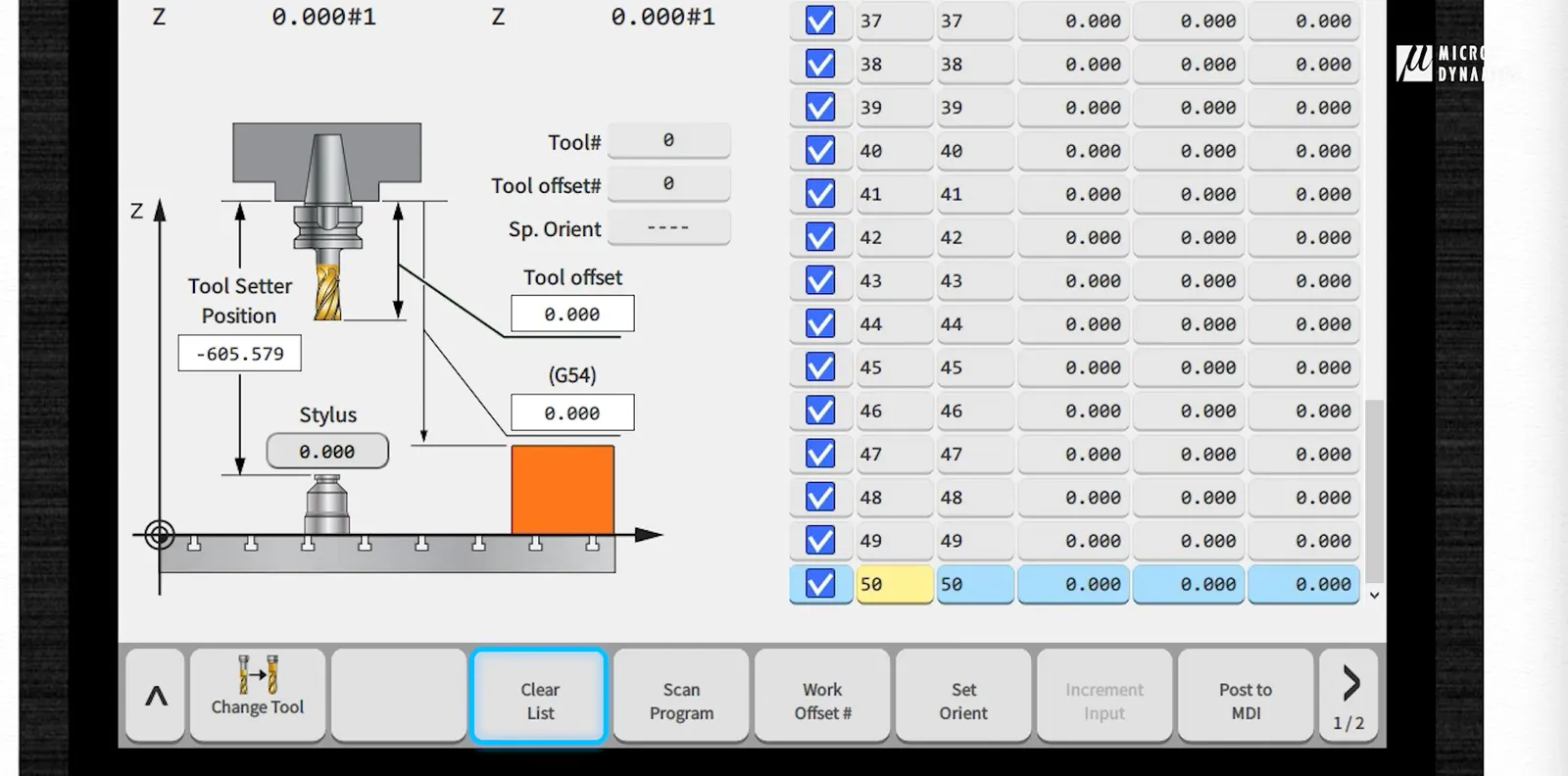

Clear list on micro dynamics cnc machine hmi tool management
First, Clear List
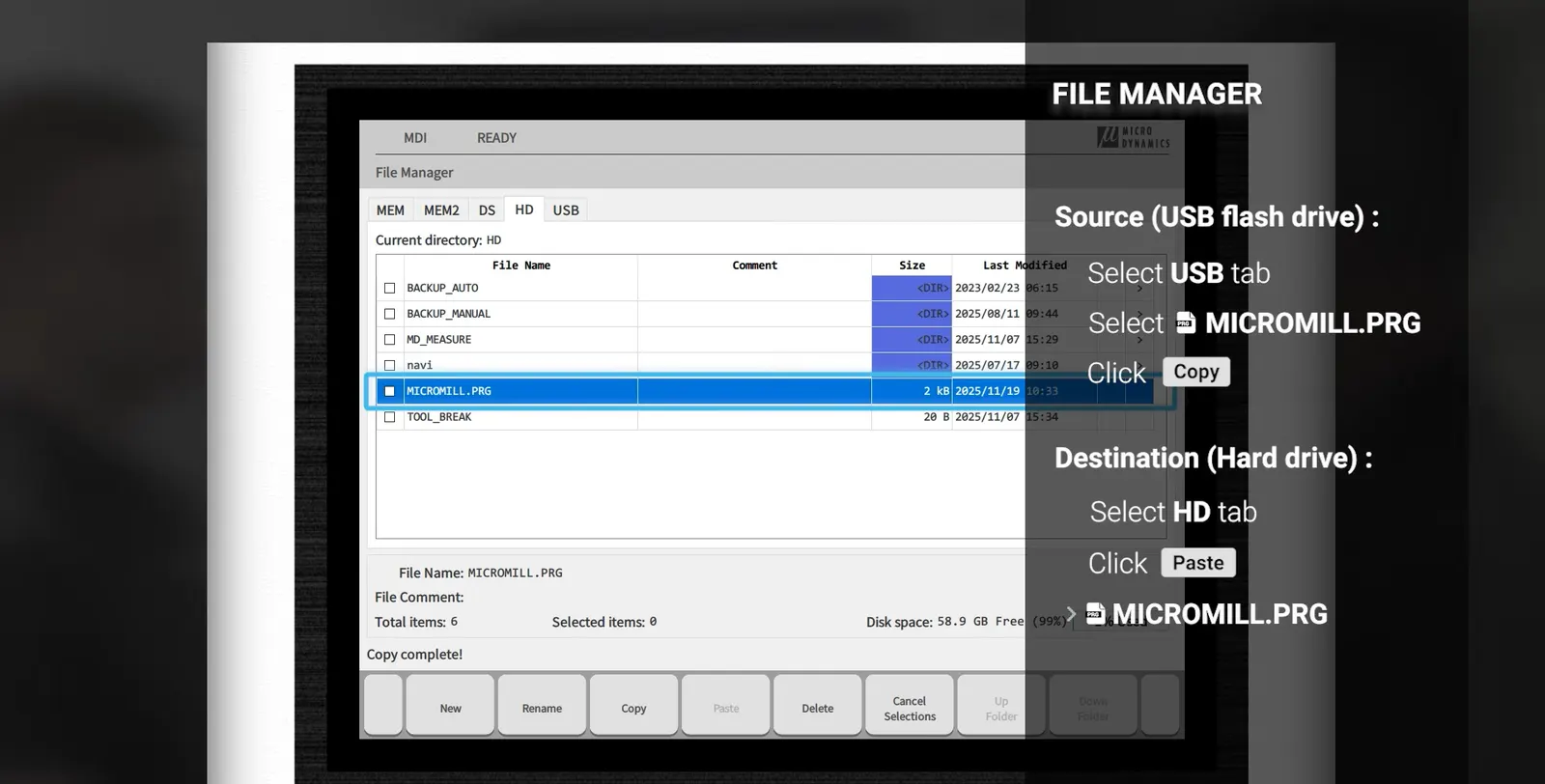
How to copy files from USB to hard drive microdynamics cnc machine hmi
Copy the program from your USB stick to your hard drive
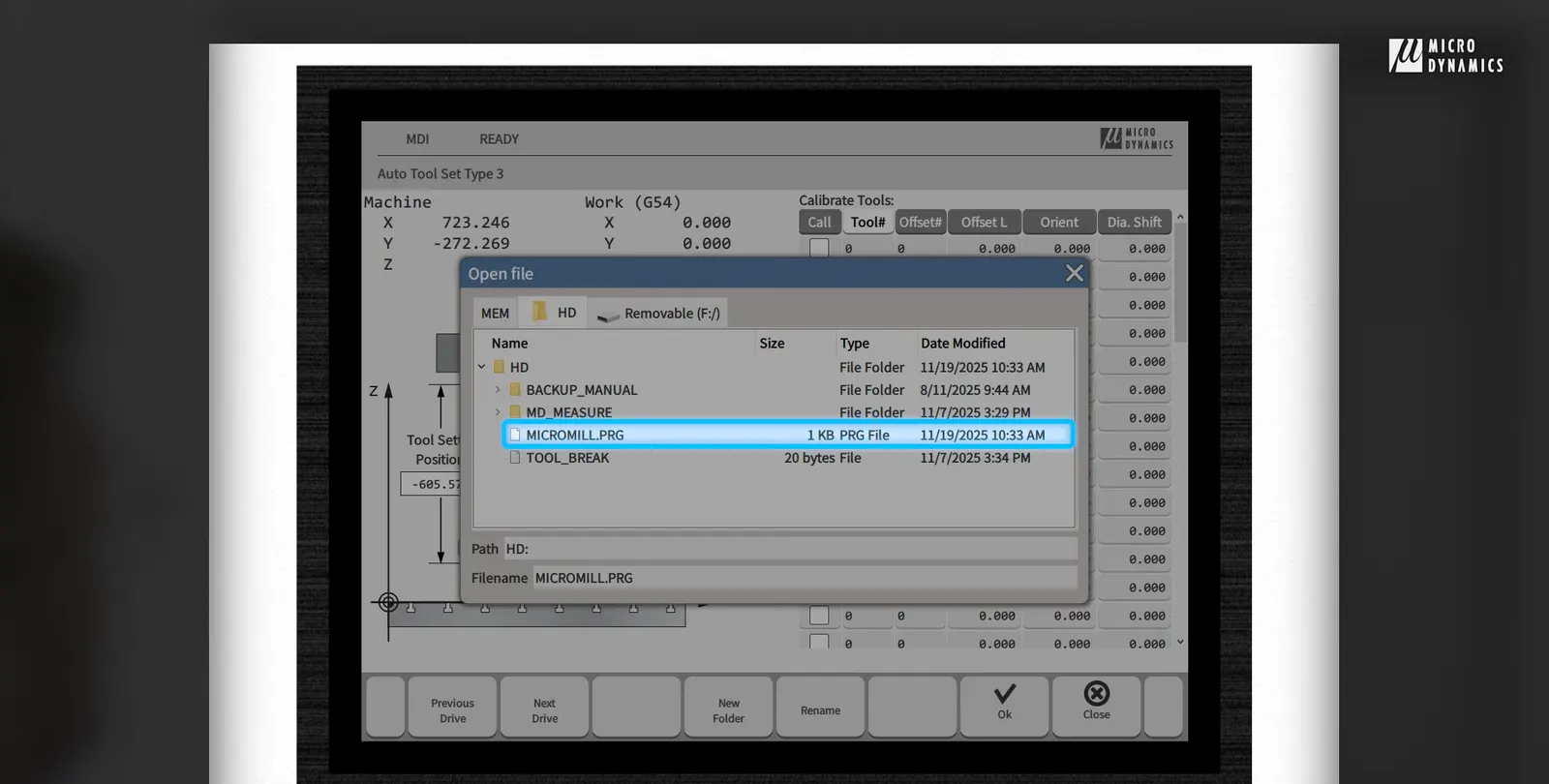
Press the "Tool" button on your keypad, press "Scan program" on your HMI screen, select the program and press "Ok" on Microdynamics cnc machine hmi
Press the "Tool" button on your keypad, press "Scan program" on your HMI screen, select the program and press "Ok"
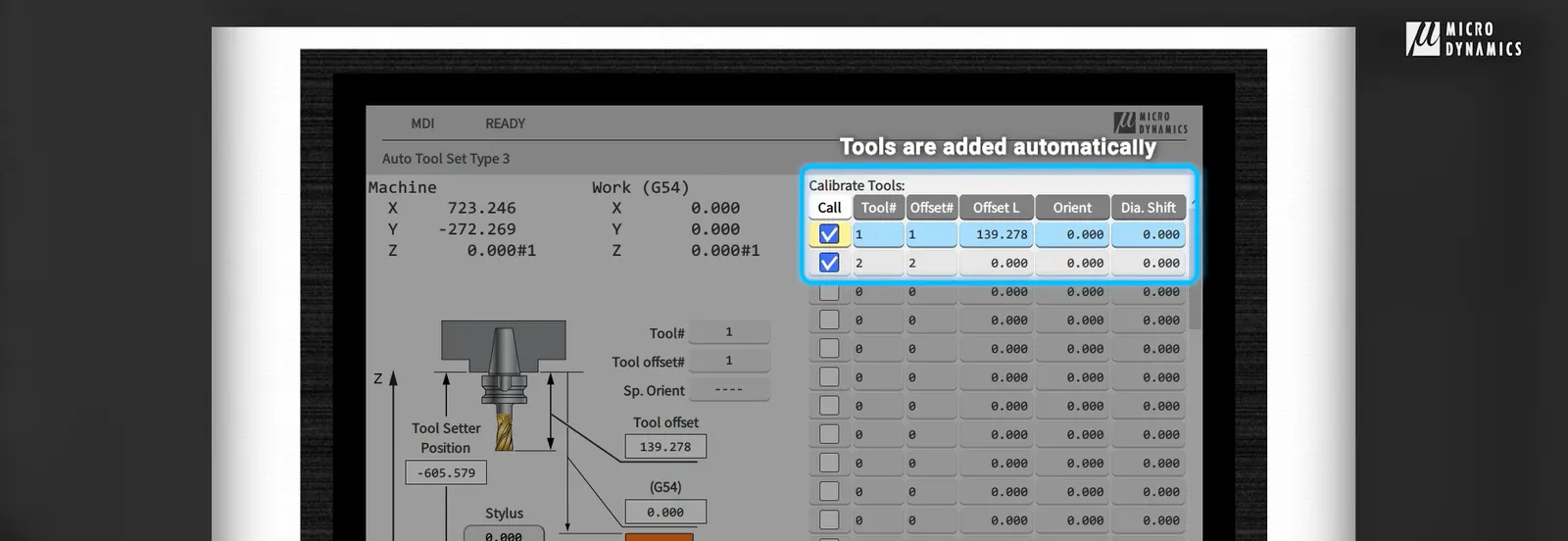
The tools will be automatically added on Micro Dynamics HMI cnc machine
The tools will be automatically added
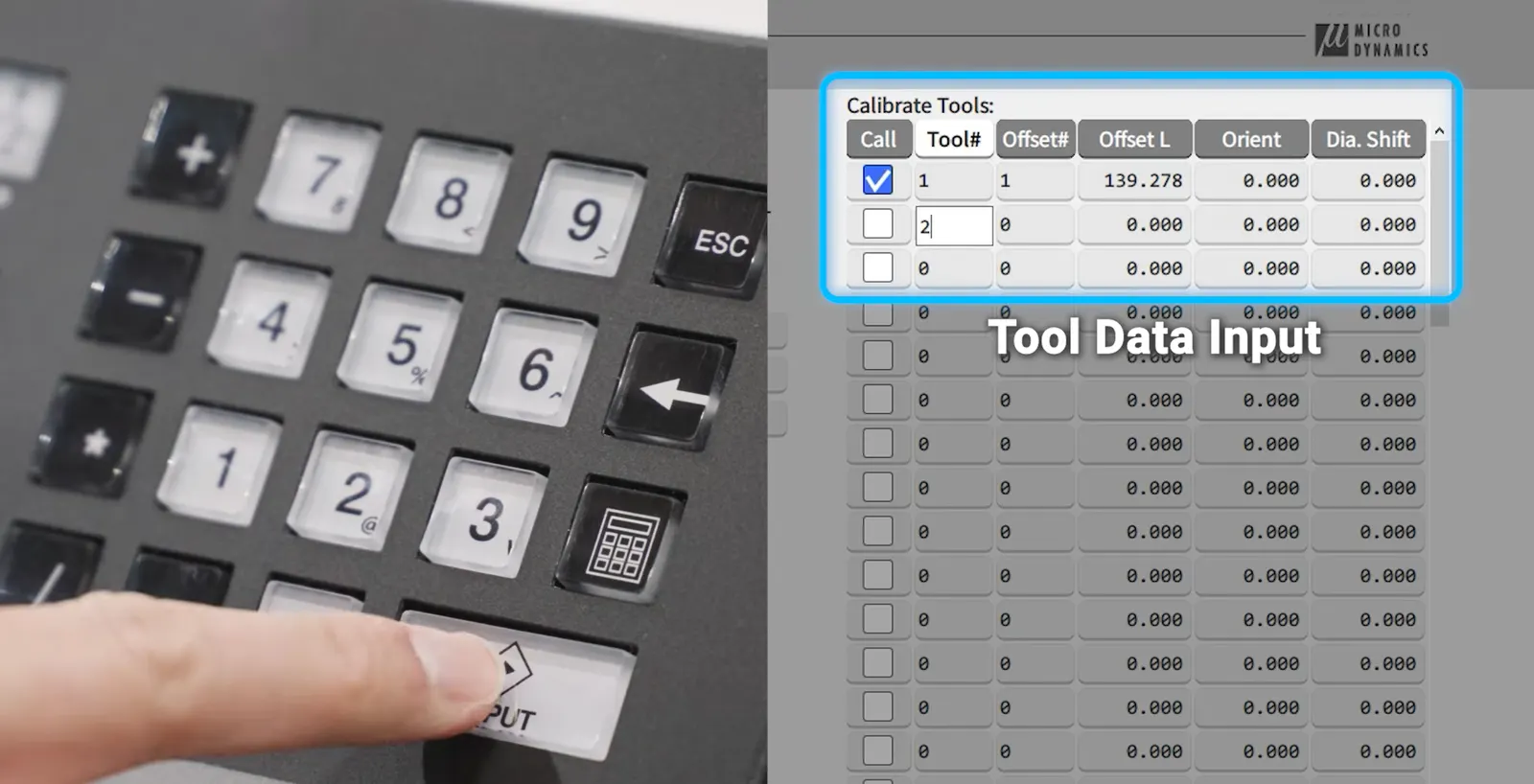
For manual input, press "Clear list" on your HMI screen and input the tool numbers automatically. on Micro Dynamics CNC machine HMI
For manual input, press "Clear list" on your HMI screen and input the tool numbers automatically.

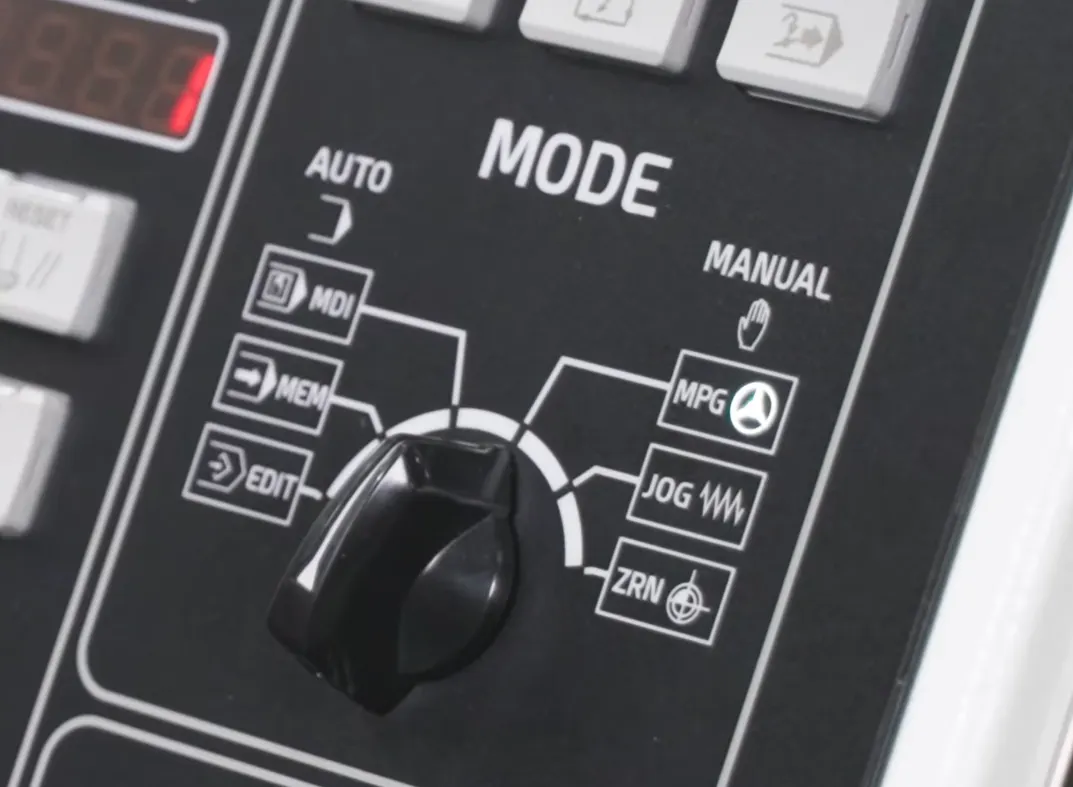
After loading, measurement is executed in MDI mode:


  • The machine automatically calls each tool

  • Moves to the tool setter

  • Performs measurement cycles

  • Updates offsets in real time


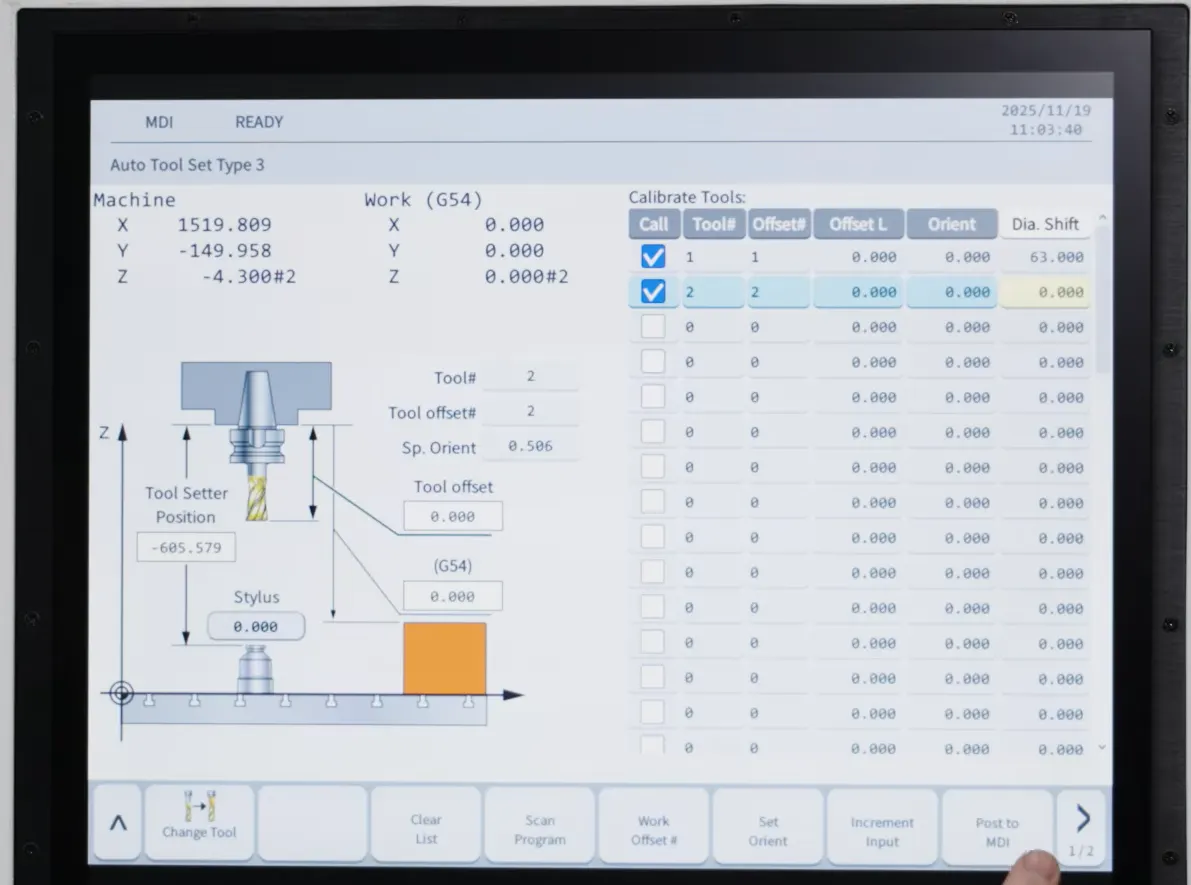
For tools like face mills, diameter compensation is applied automatically (after user input on the Dia. Shift column) through offset positioning, while standard tools such as end mills are measured directly at center.


The system also intelligently pauses when required, for example, requesting tool orientation before continuing, ensuring accurate results without operator guesswork.


Note: Upon being prompted for tool orientation, orient the tool to the correct position, press "Set Orient" on the HMI screen then press the cycle start.


Measuring Tools Outside the Magazine


Not all workflows start with tools preloaded.


The HMI includes a tool loading function that allows measurement during setup:


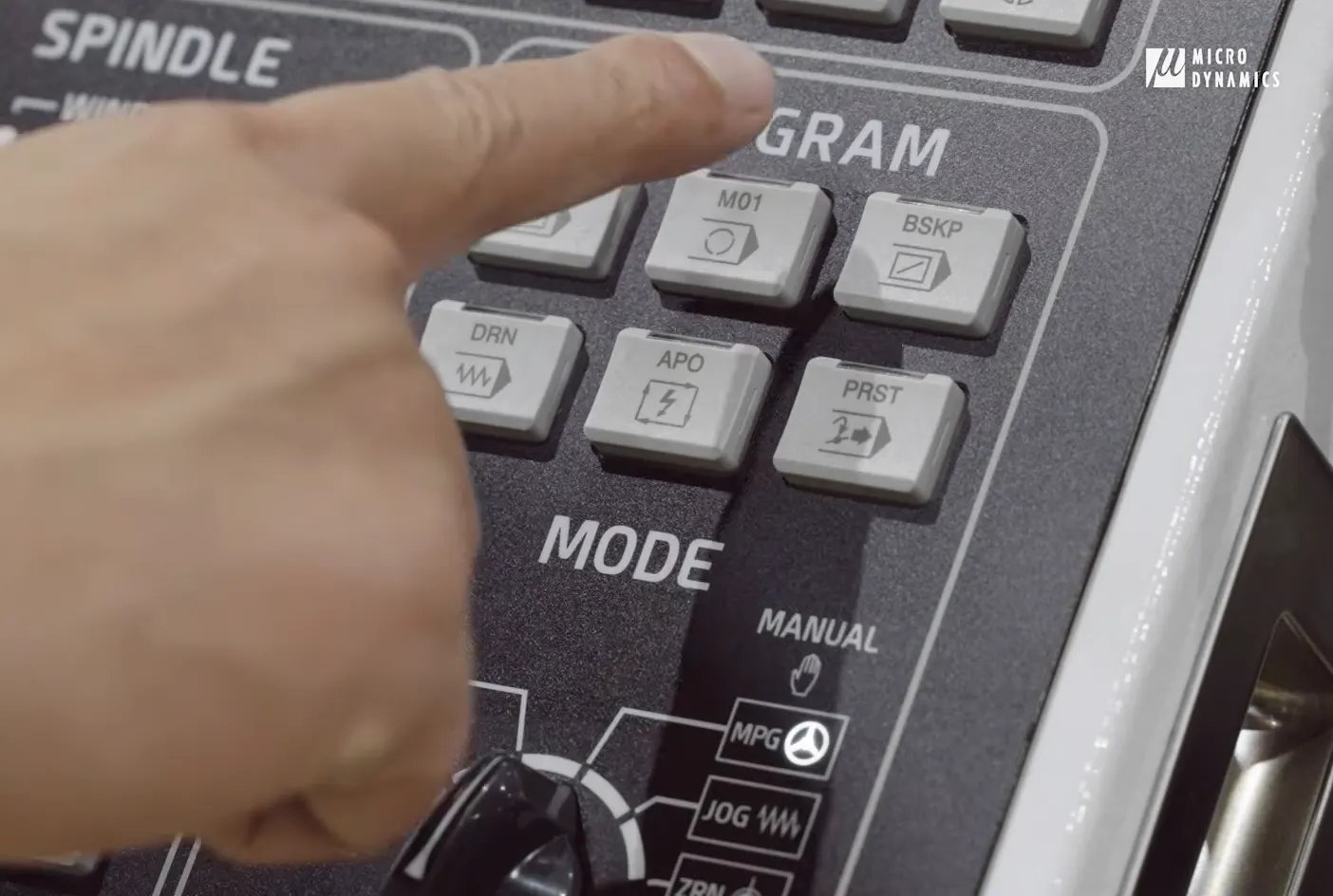
  • Use optional stop (M01) to pause the cycle

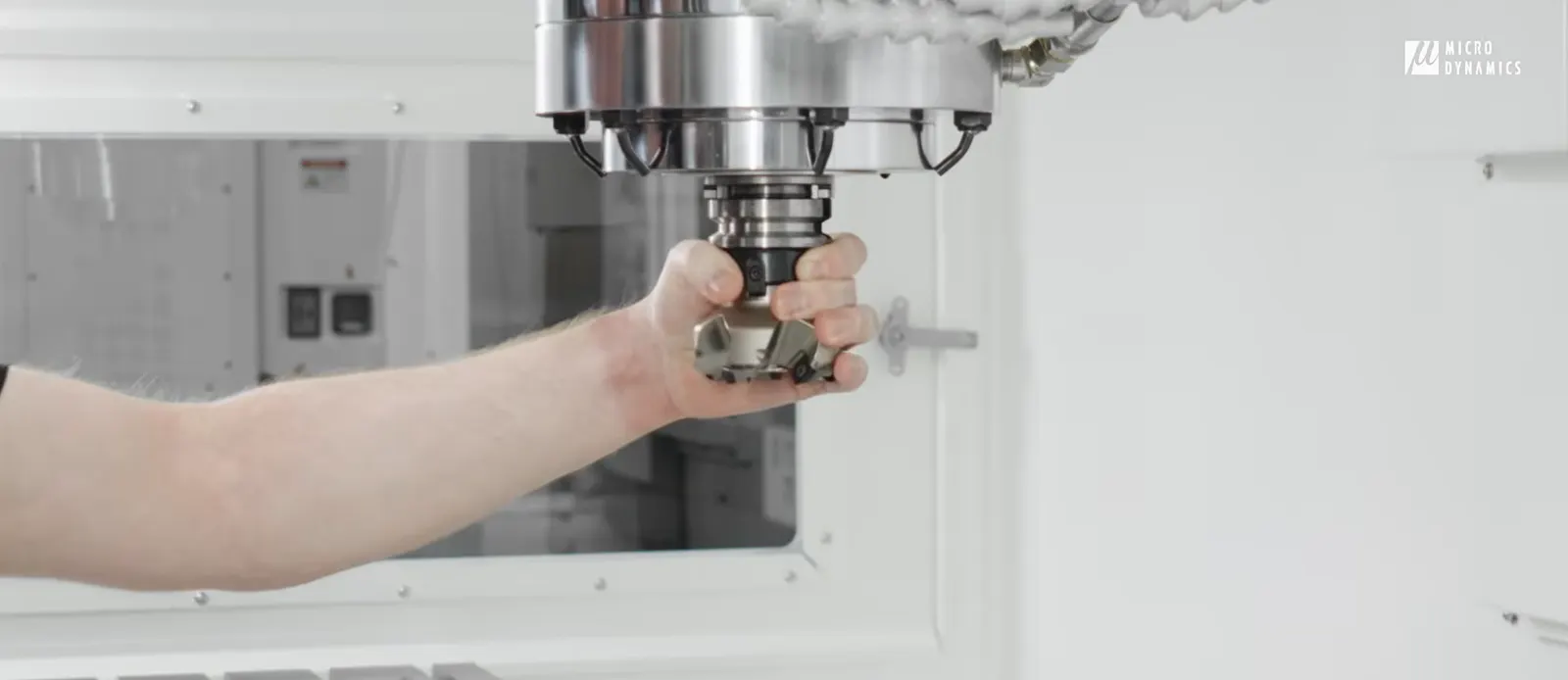
  • Load tools manually into the spindle

  • Orient and confirm

  • Resume automatic measurement


This approach keeps the process structured and repeatable, even when tools are introduced mid-cycle.
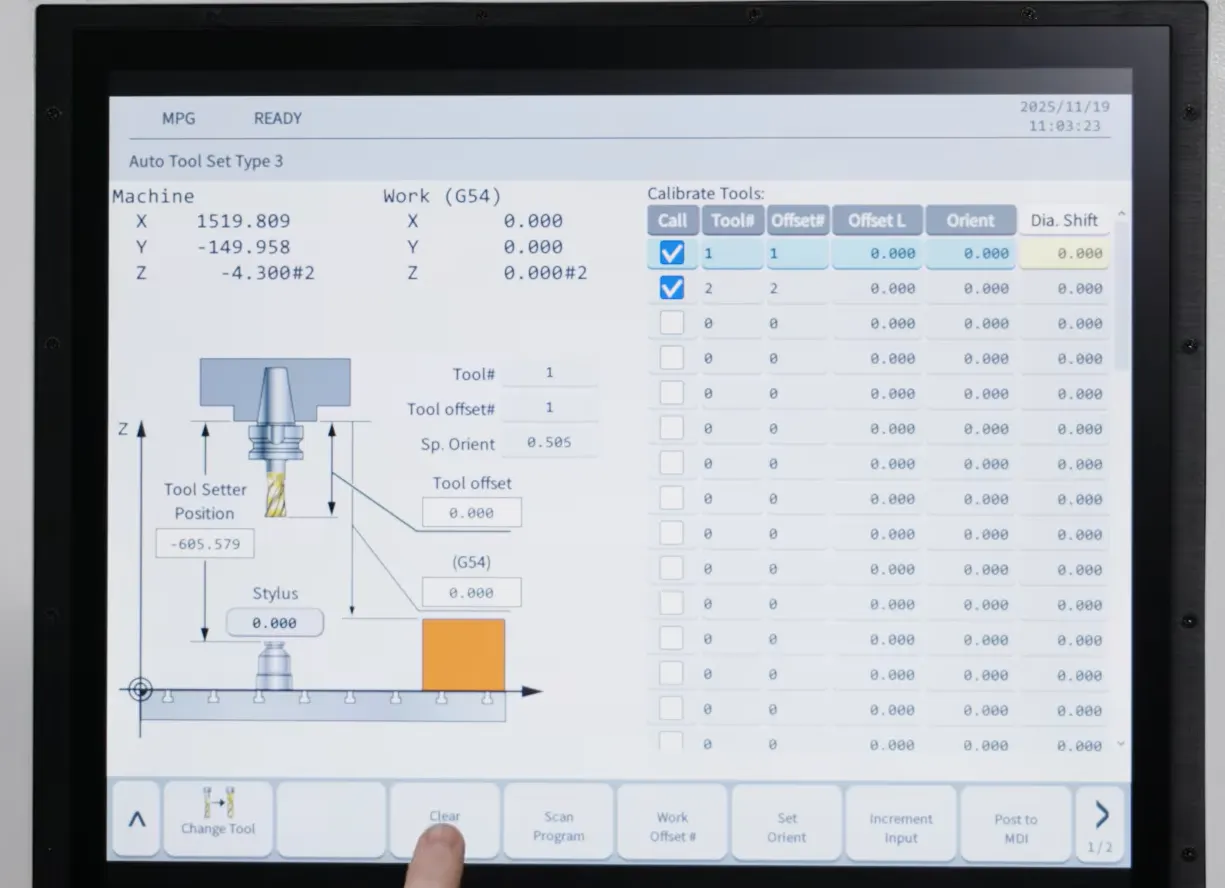
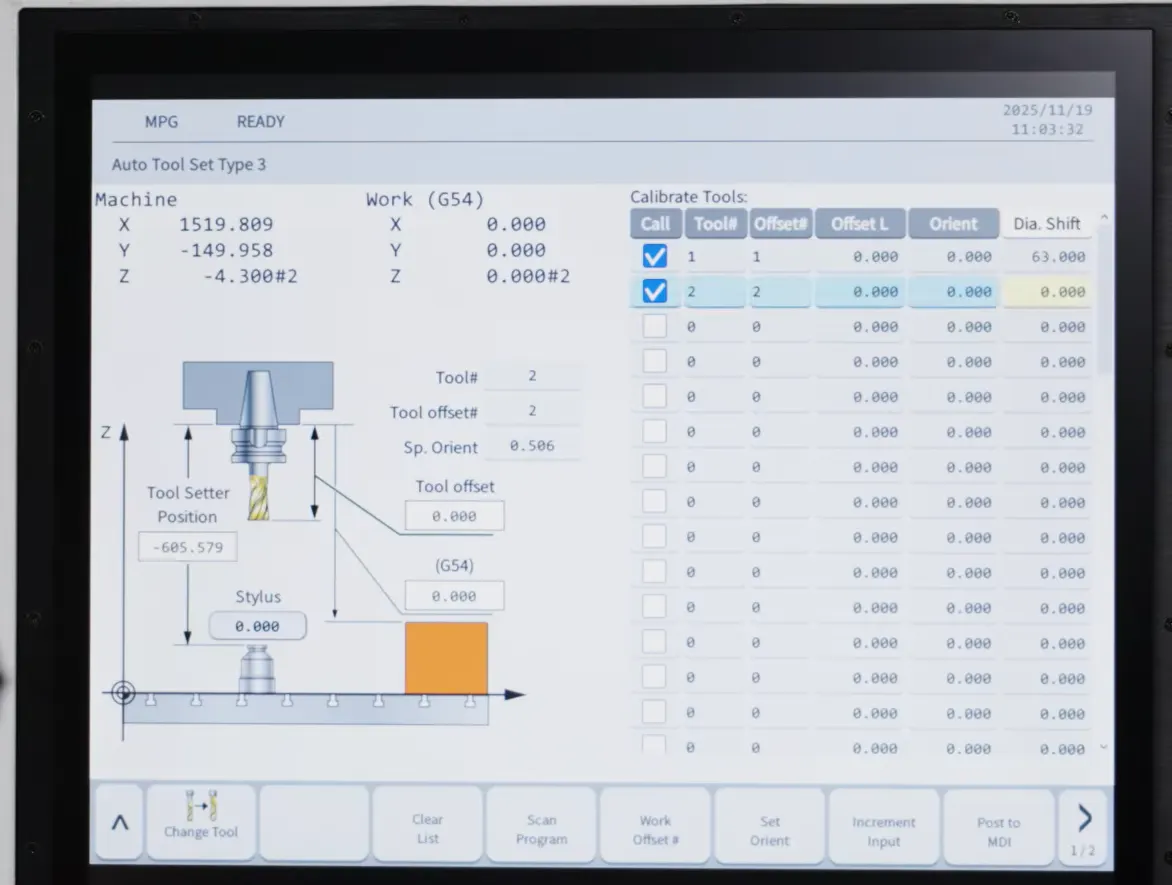
Clear List
Clear List
Input tools and set Diameter Shifts
Press "M01", optional stop
Post to MDI and press Cycle Start
When the machine stops, change mode to MPG
Load and Orientate the tool, press "Set Orient" on the HMI Screen, switch to MDI and .press Start Cycle again

After all tools are done, simply press "Finish"


Built-In Tool Breakage Detection


Tool reliability doesn’t stop at measurement.


Our system includes integrated tool breakage detection using dedicated M-codes:


  • Call the breakage routine via M503

  • Define tolerance using parameter inputs

  • Compare measured tool length against expected values


If a deviation exceeds the defined tolerance, the machine detects the breakage immediately and reacts accordingly.
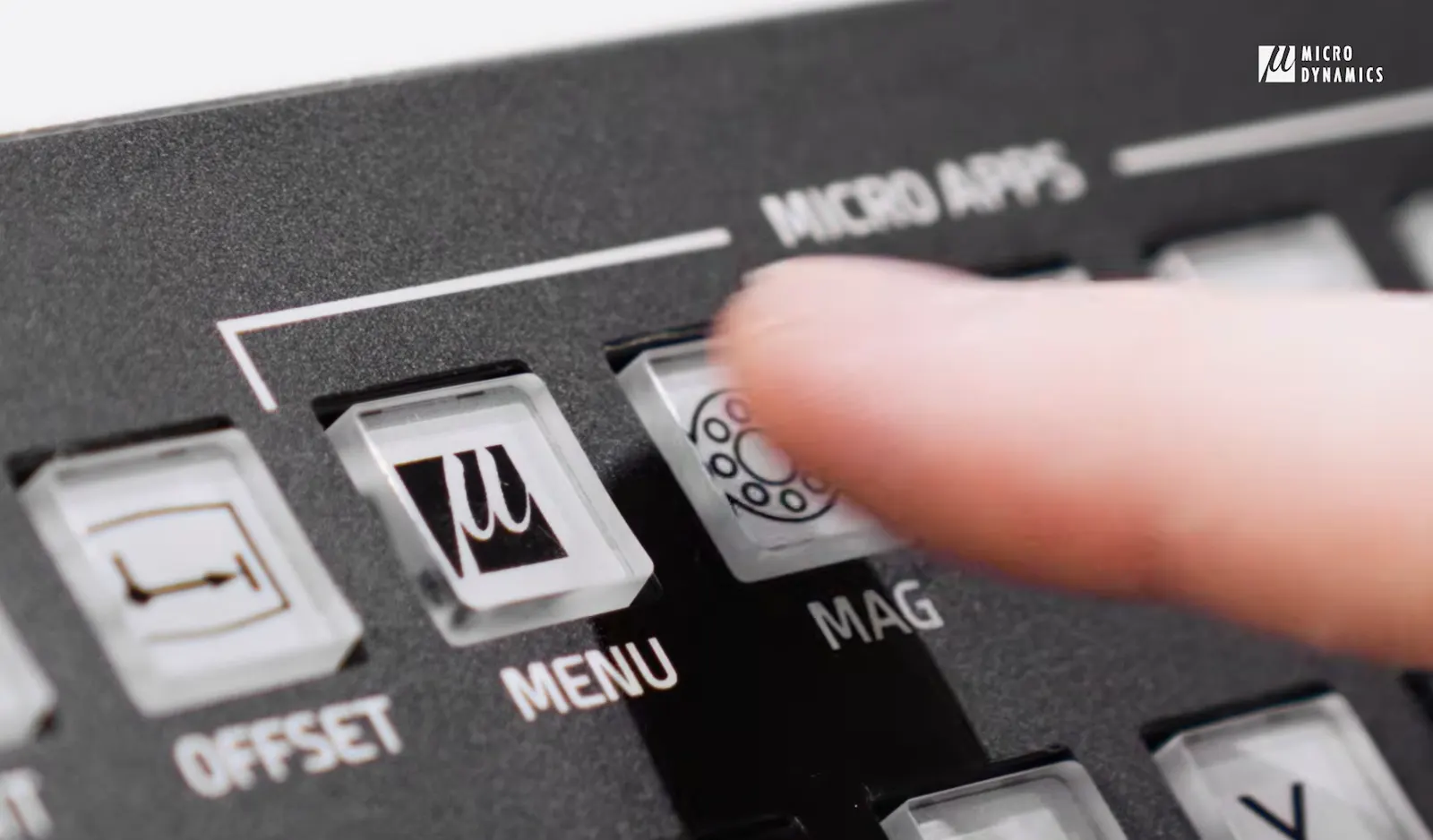
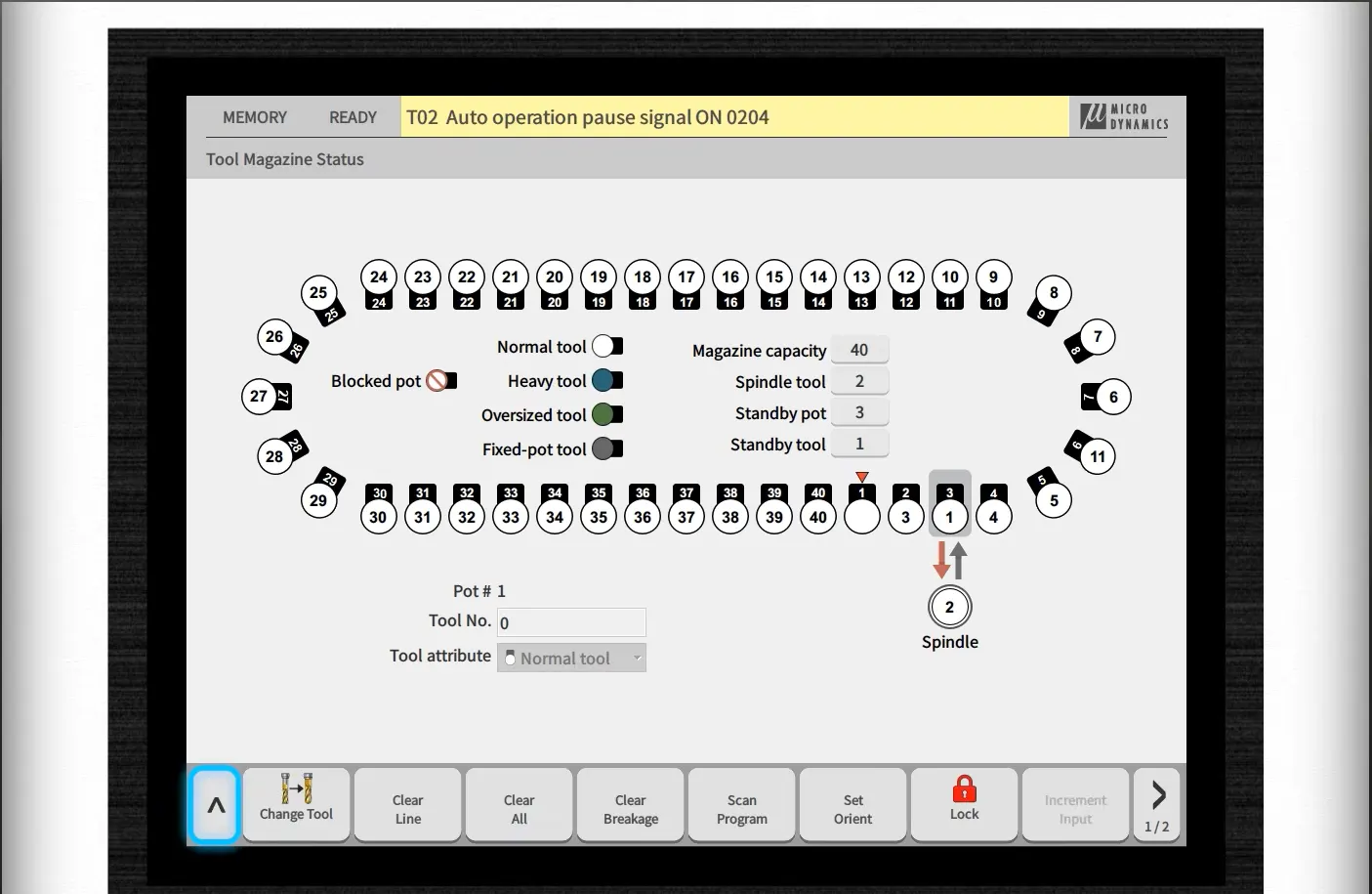
Press "Mag" to see the tool magazine
Press the "^" arrow
Press the "^" arrow
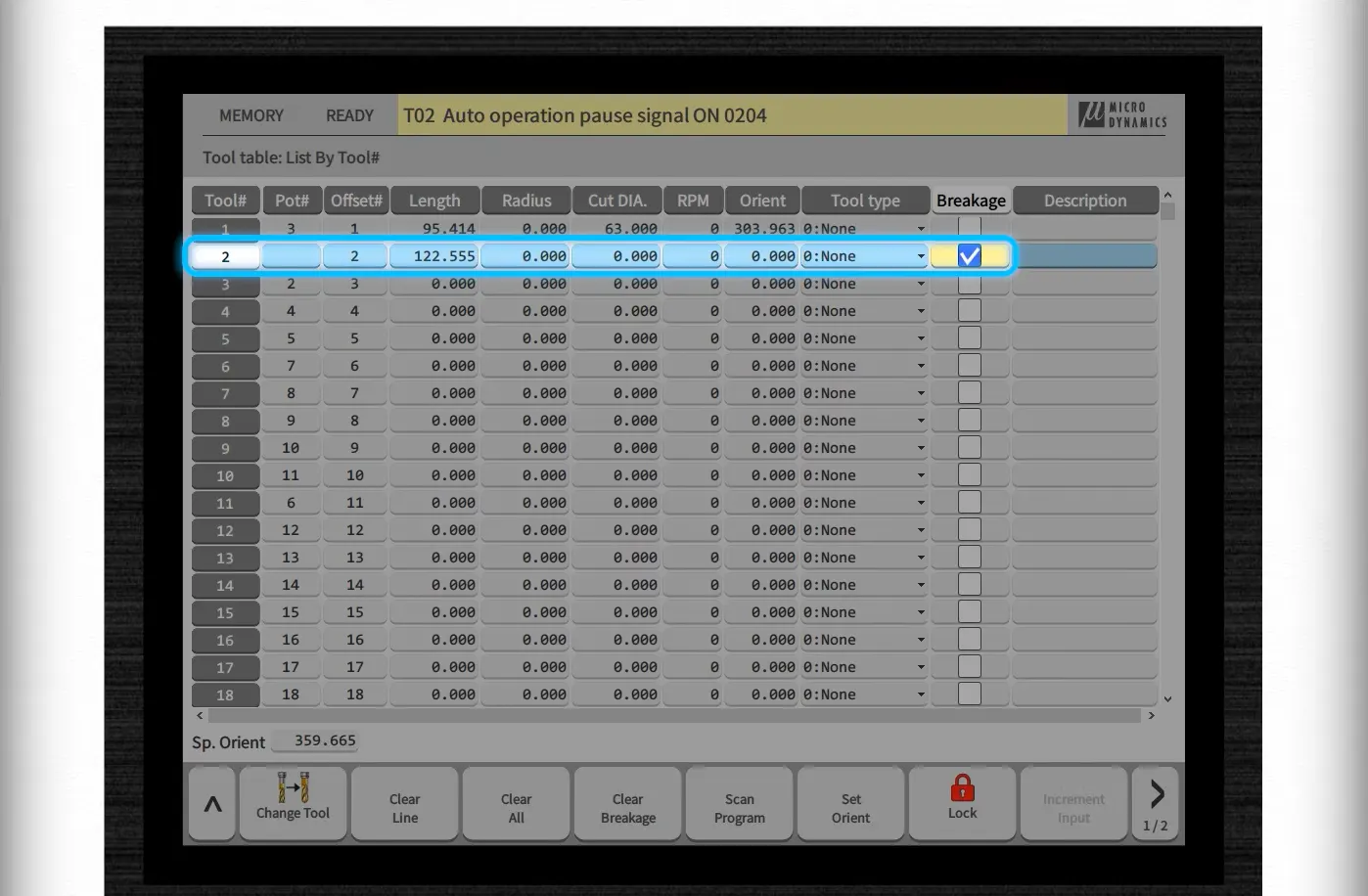
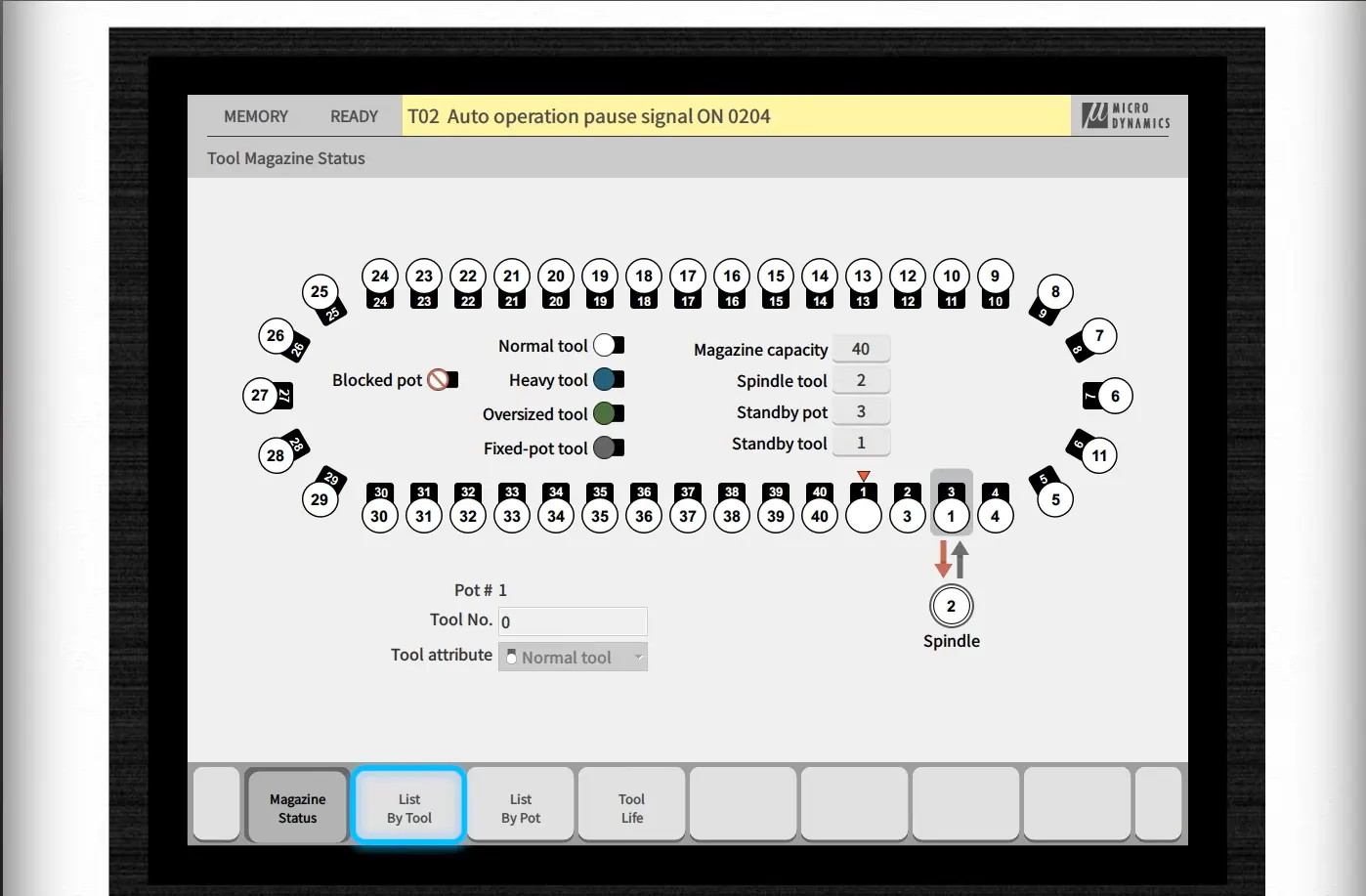
Press "List By Tool"
Select which tool(s) to use the tool breakage on
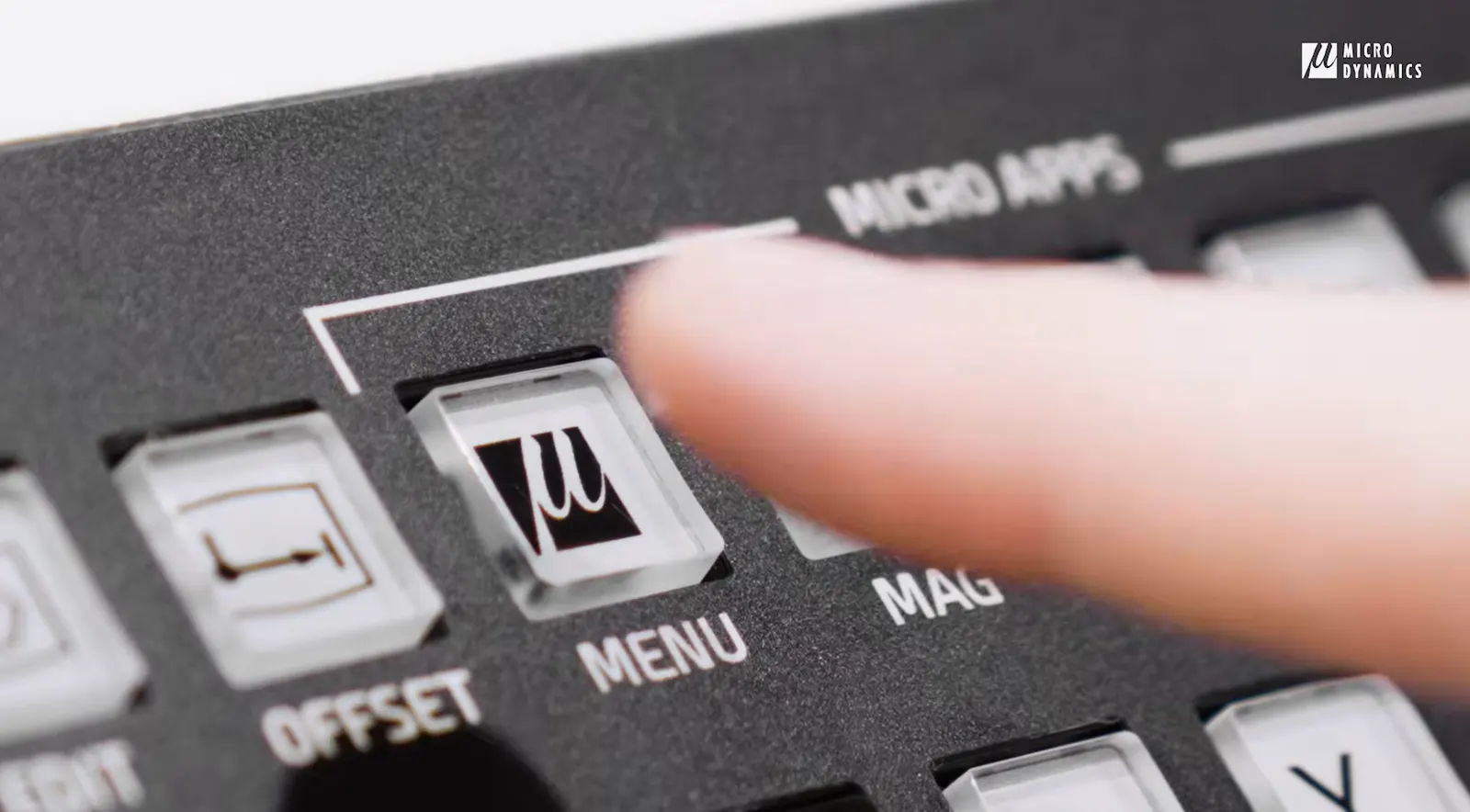
Press "Menu"
Press "Menu"
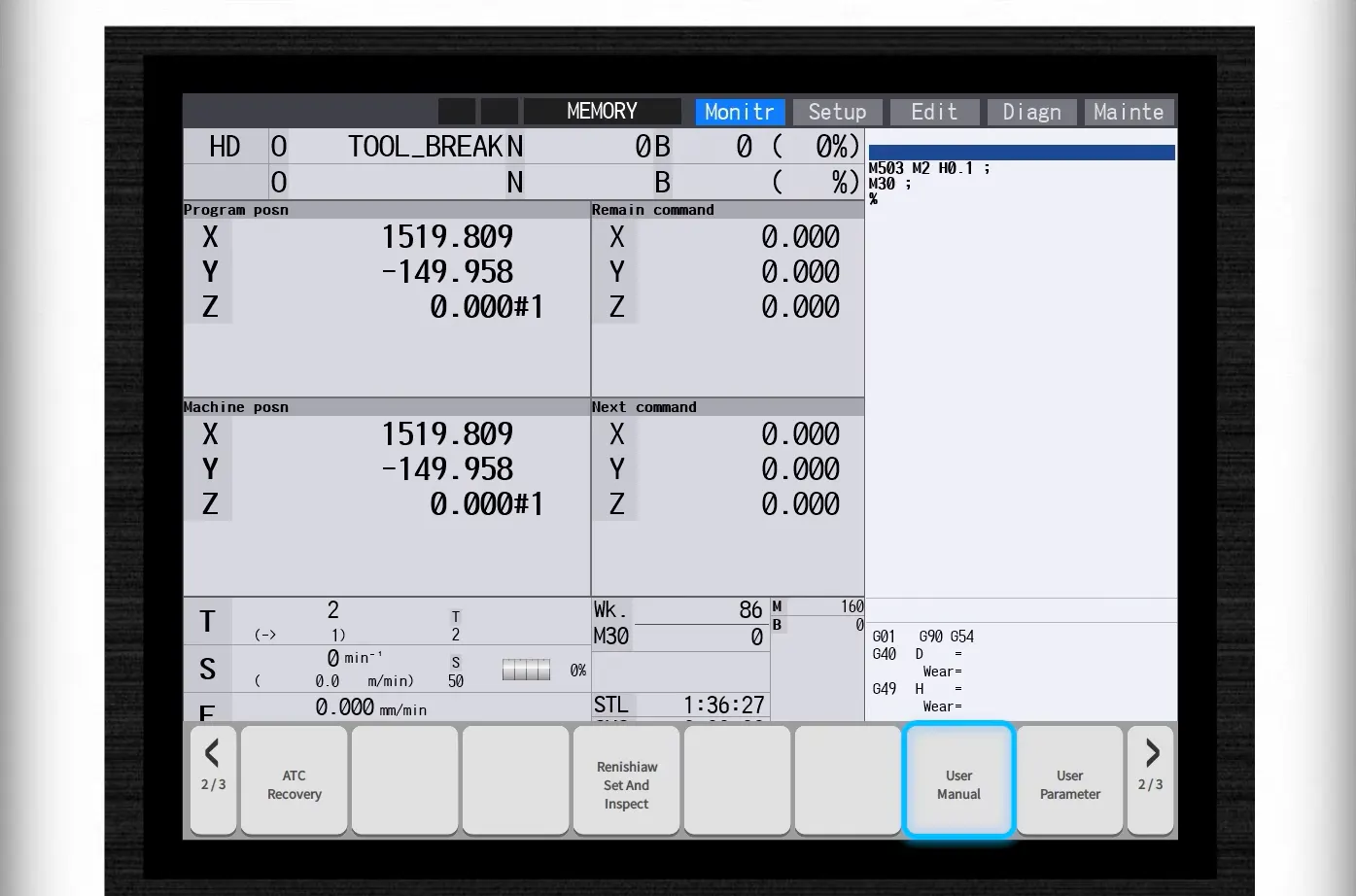
For the M-code we go to User Manual
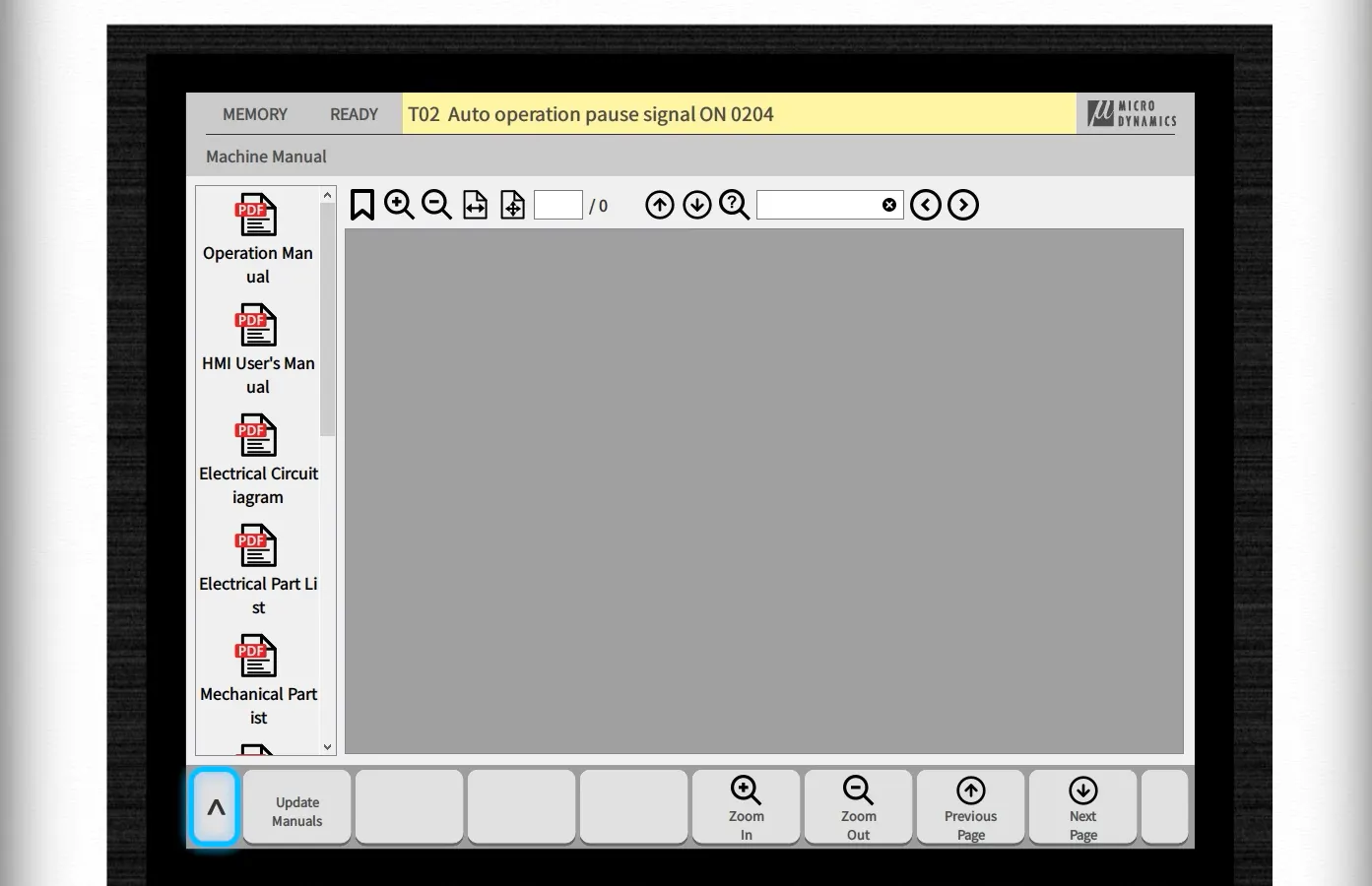
Press the "^" arrow
Press the "^" arrow
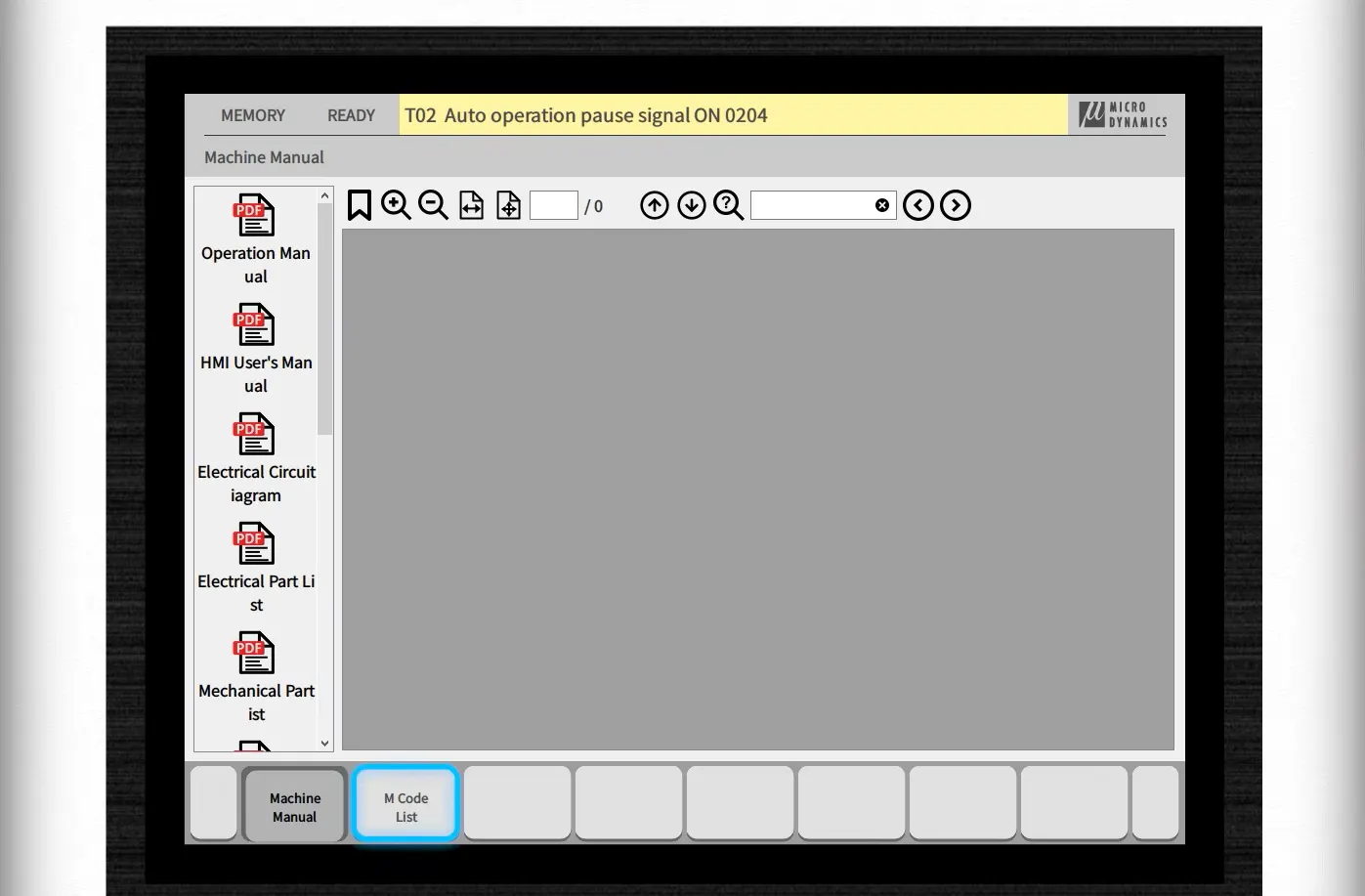
Press "M Code List"
Press "M Code List"
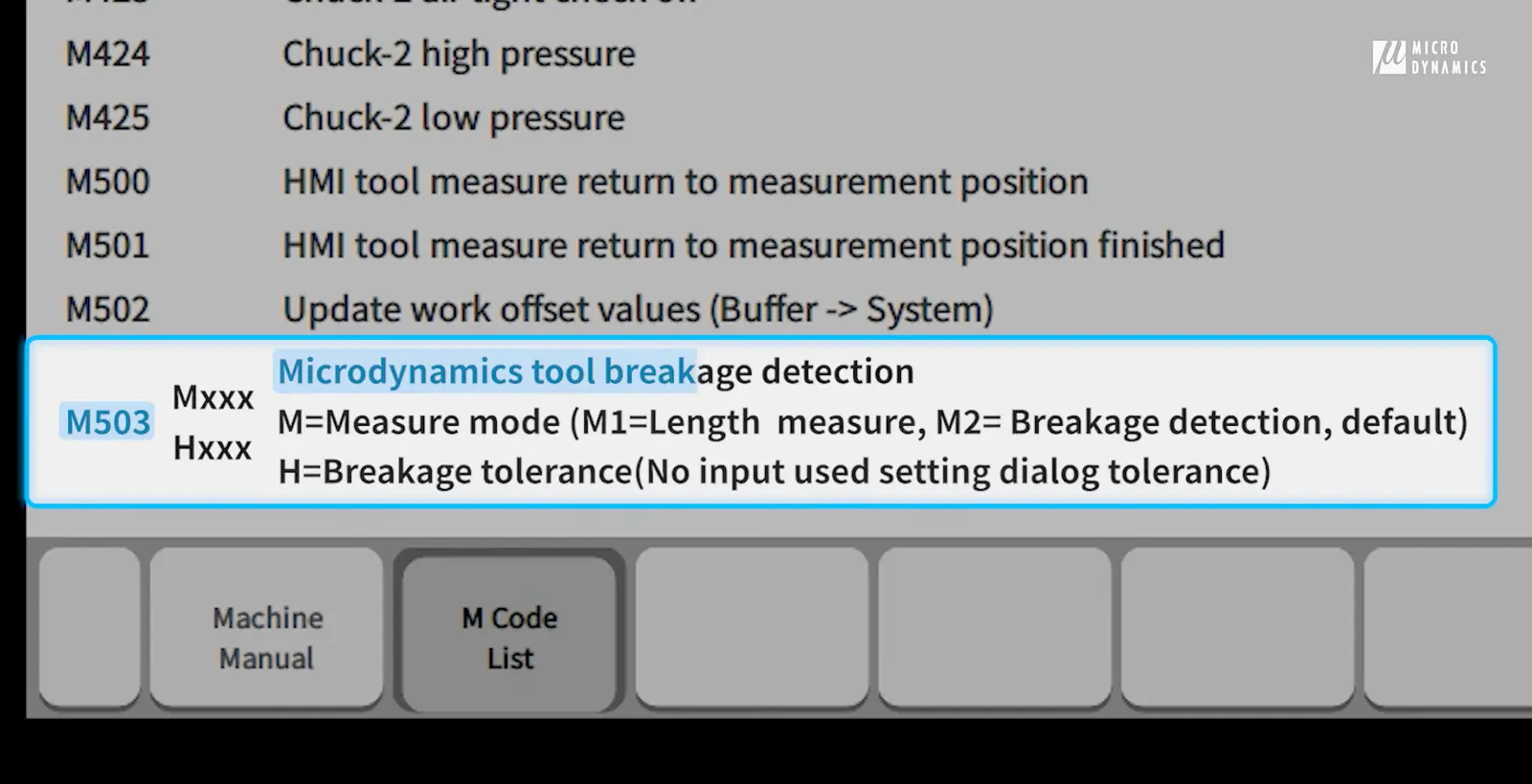
On the bottom of the list of M codes, we can see M503 calling the micro program of the tool breakage. M2 is for breakage detection and H is for breakage tolerance, meaning tolerance of tool length
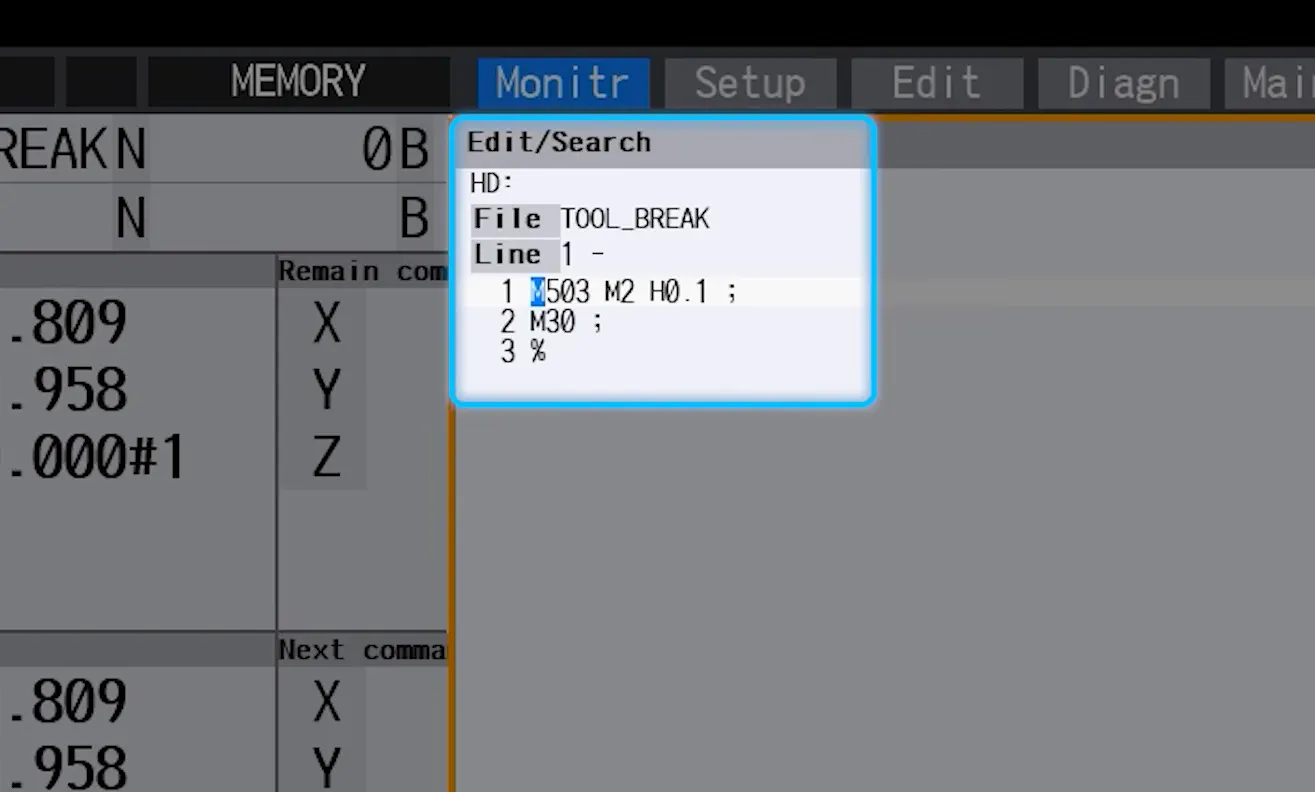
Here is an example of a prepared program with a tolerance of 0.1mm
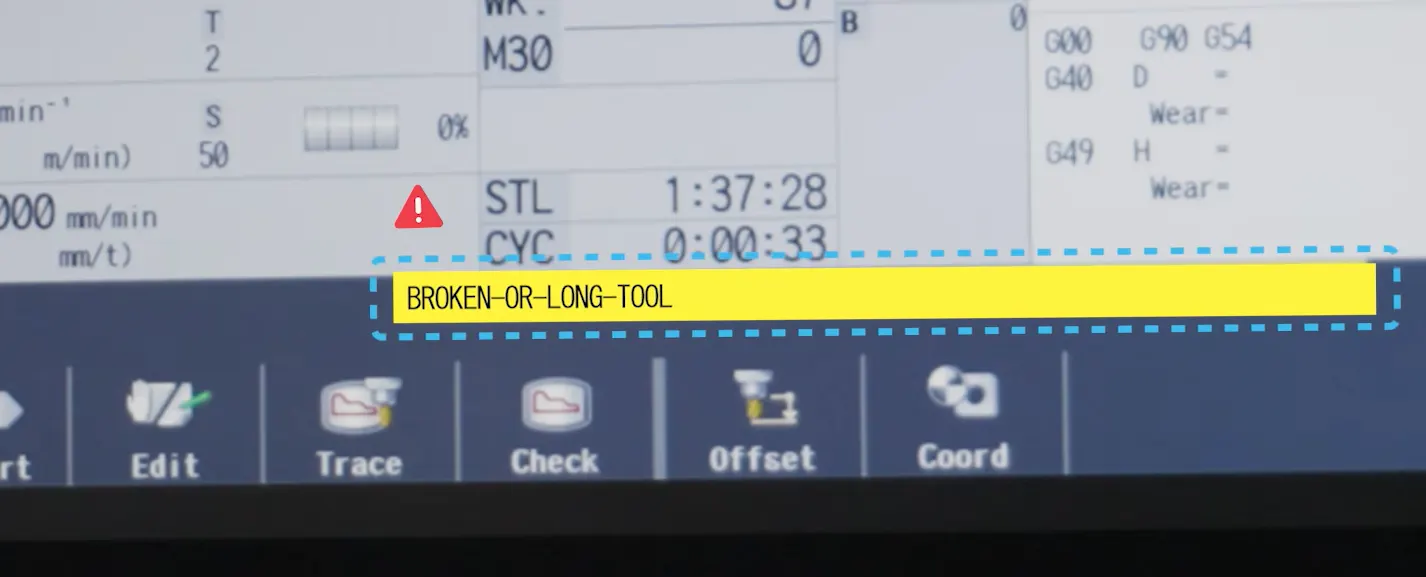
This is what is shown on the HMI screen upon detection of tool breakage

This ensures that tool failures are caught before they impact parts, surface finish, or spindle load, protecting both the machine and the workpiece.


Manual Measurement Mode (No Tool Setter Required)


For shops without a tool setter, the MicroDynamics HMI still provides a complete solution.

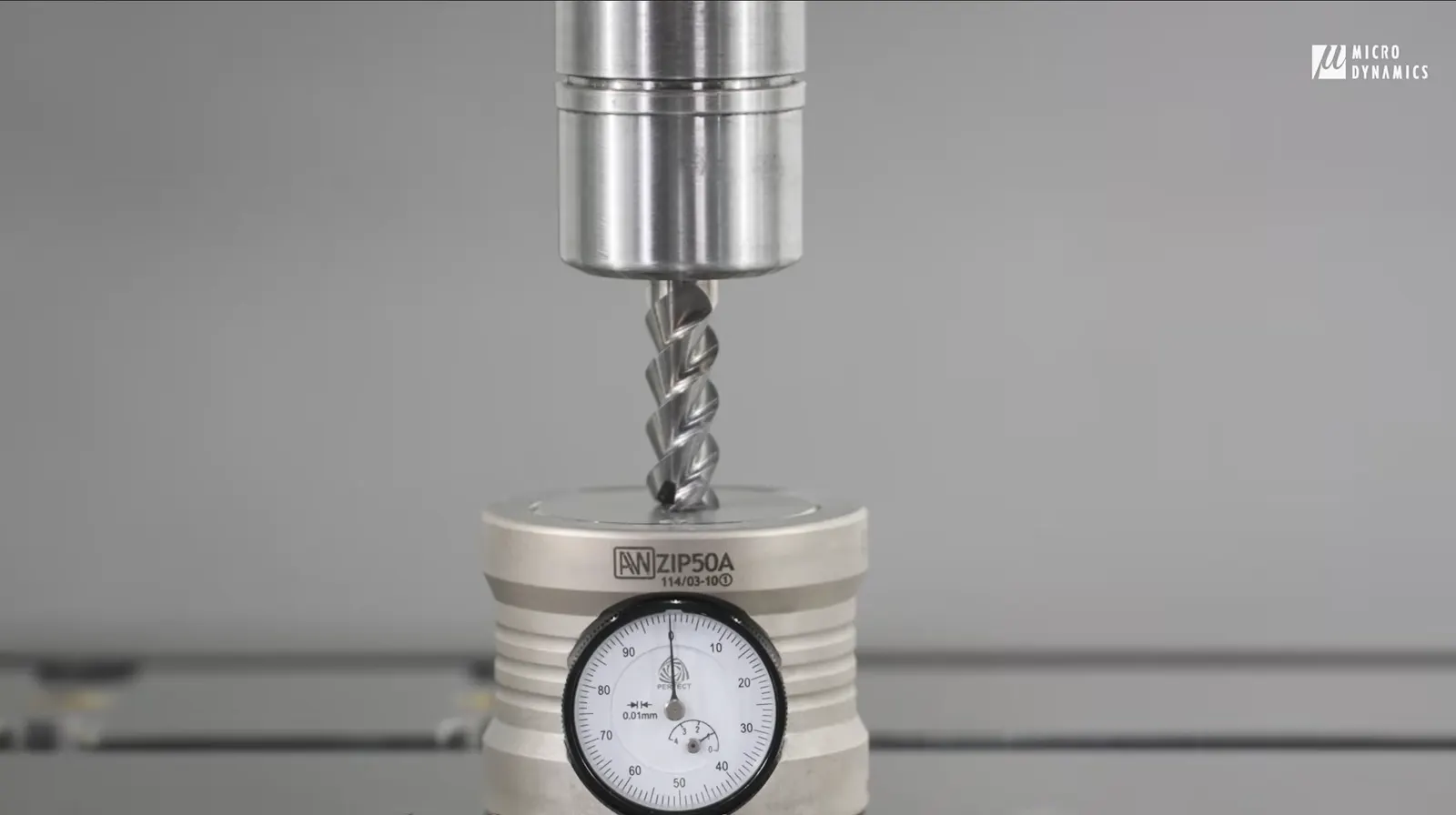
Manual mode allows measurement using a gauge:


  • Calibrate the reference height using a known tool

  • Input the current machine position

  • Measure additional tools using MPG control

  • Automatically calculate and assign offsets
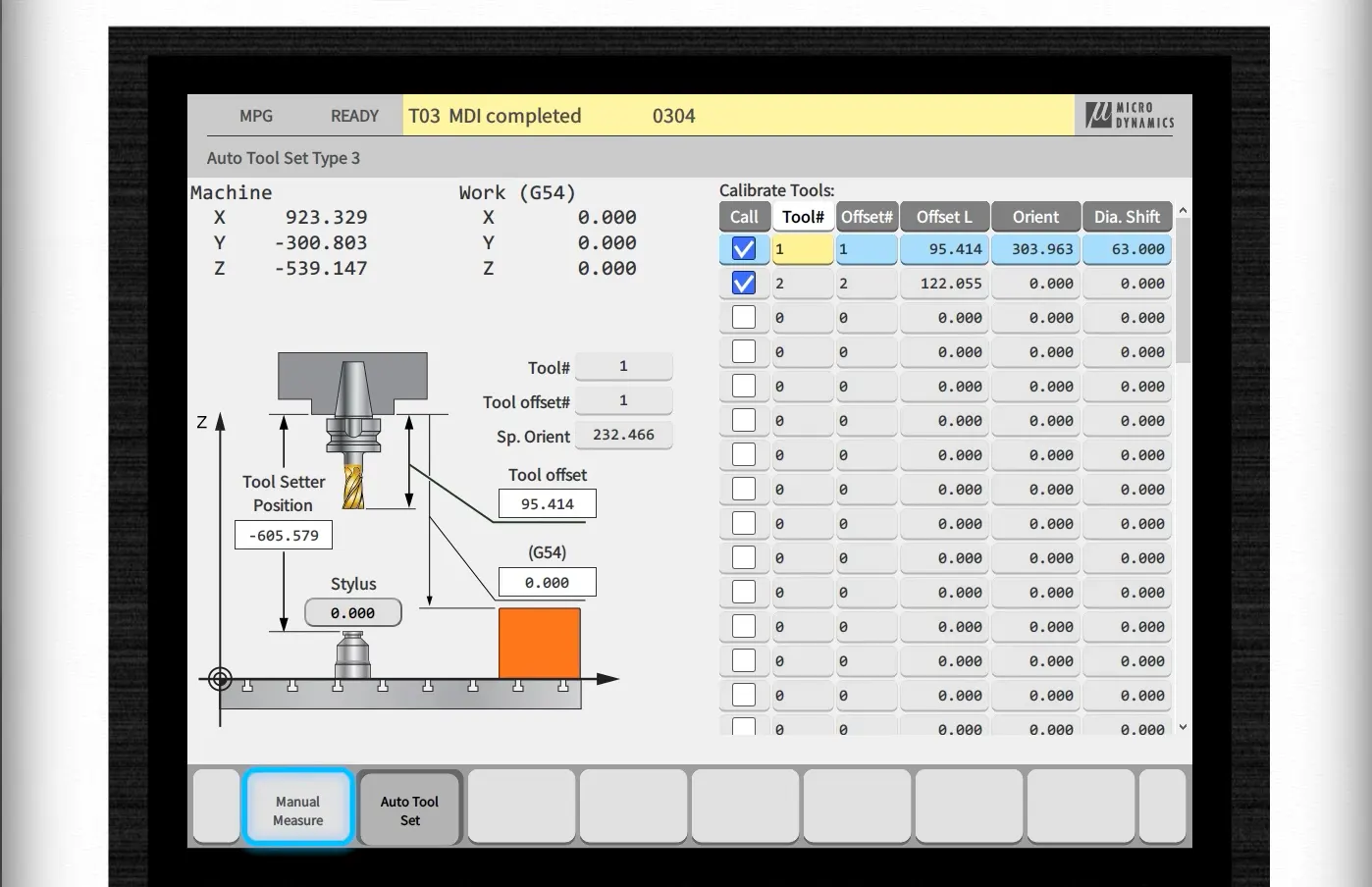

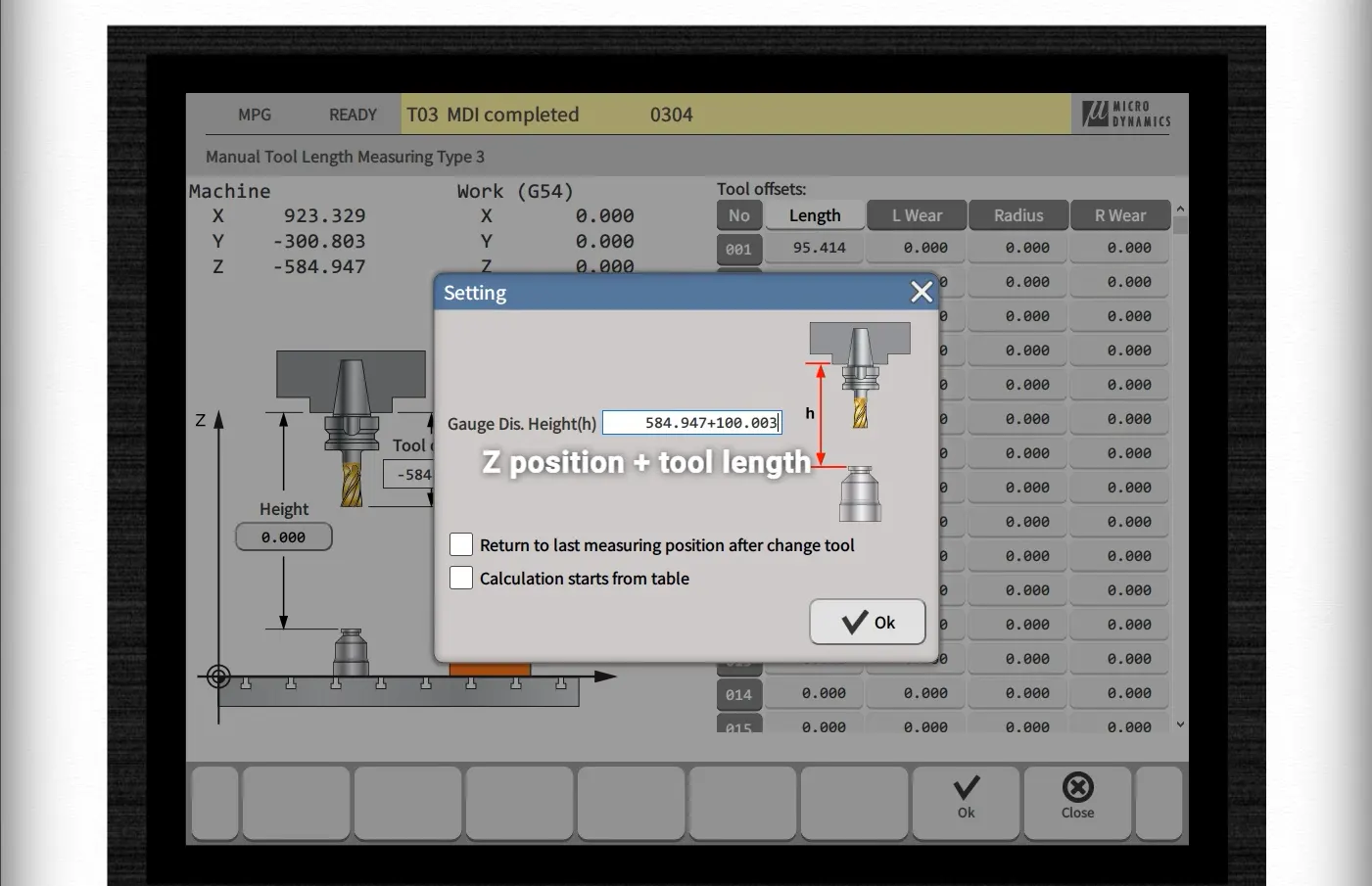
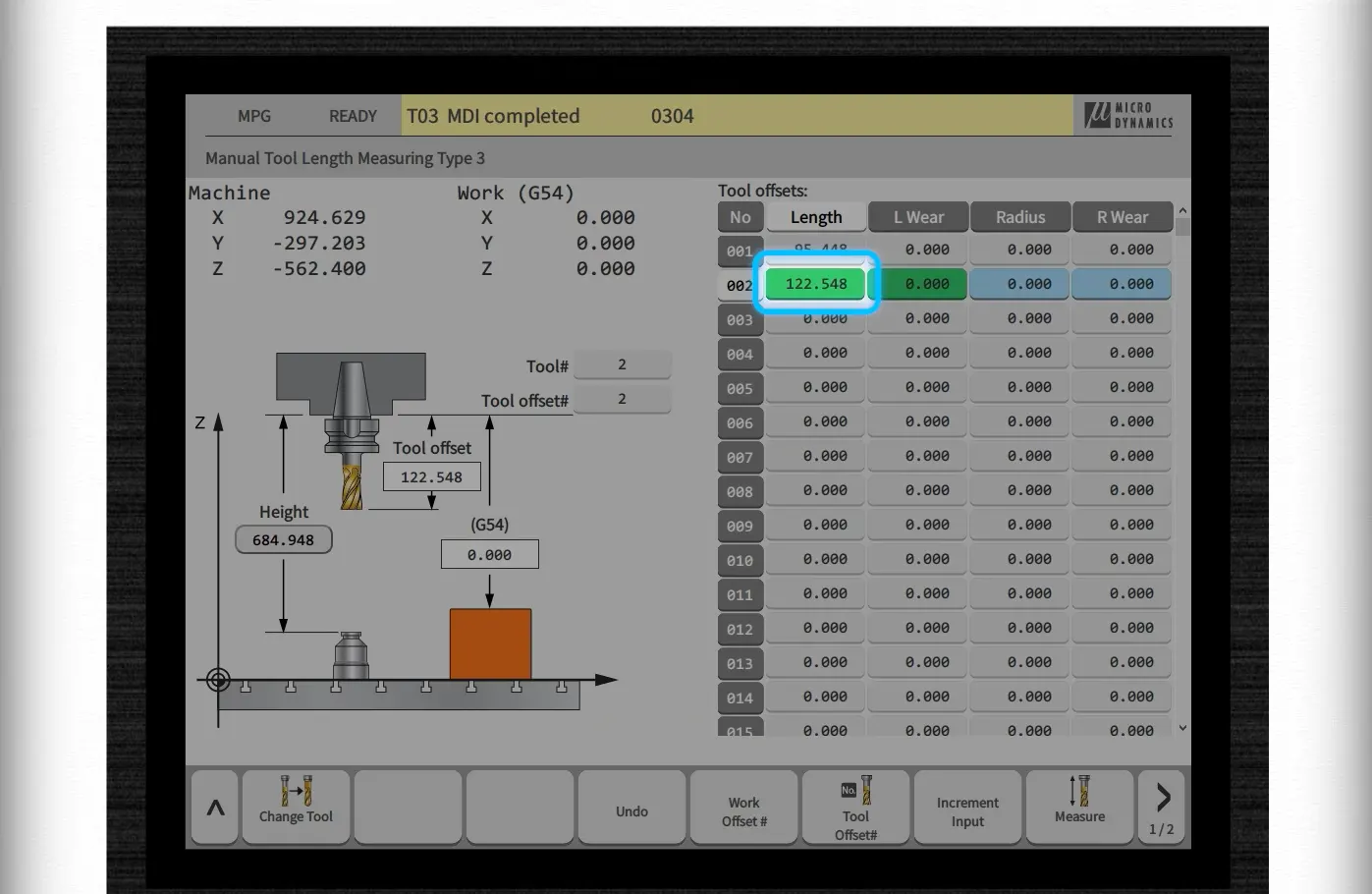
Go from "Auto Tool Set" to "Manual Measure"
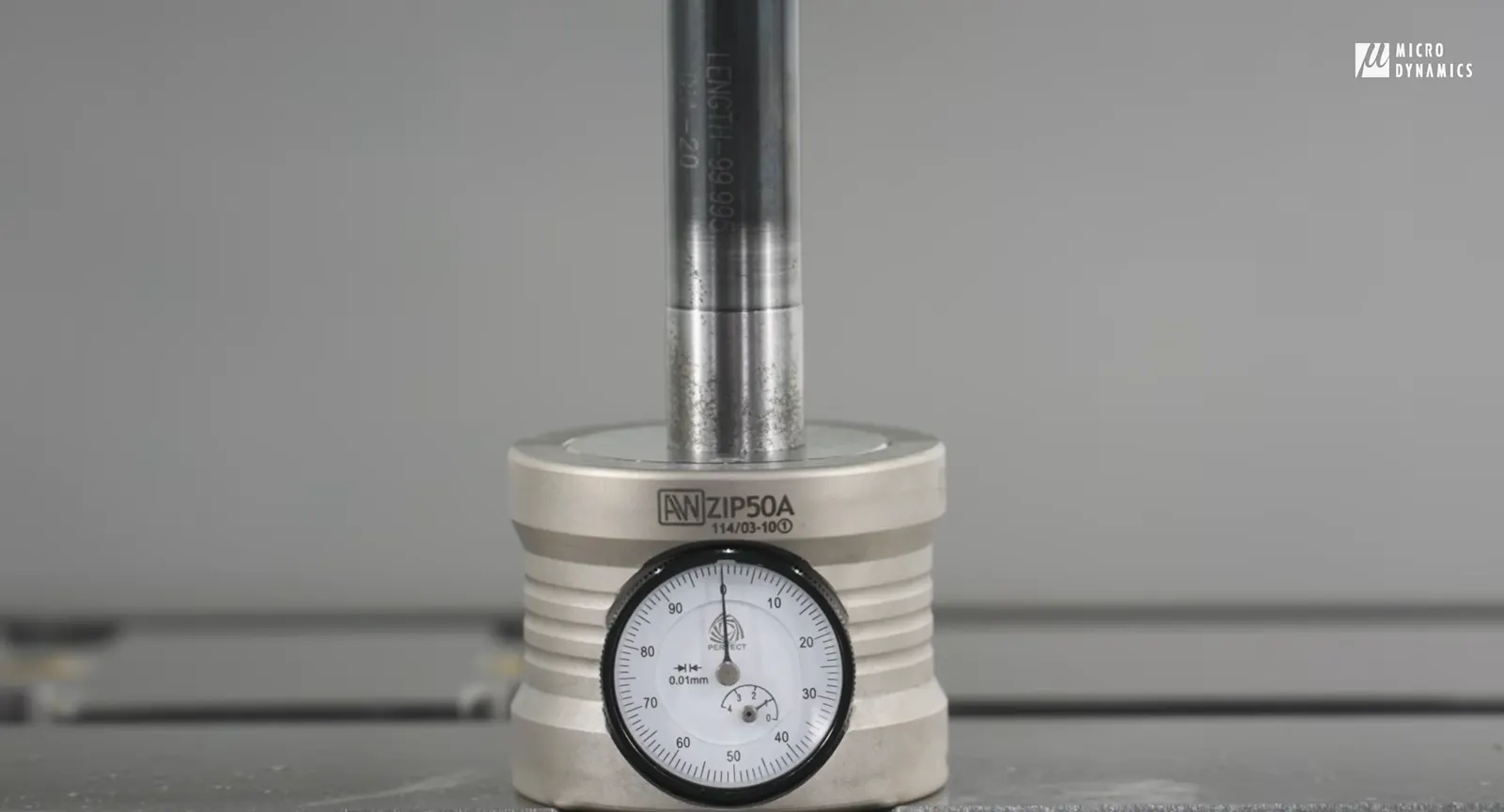
Position your hard probe above the gauge, move until it shows 0,
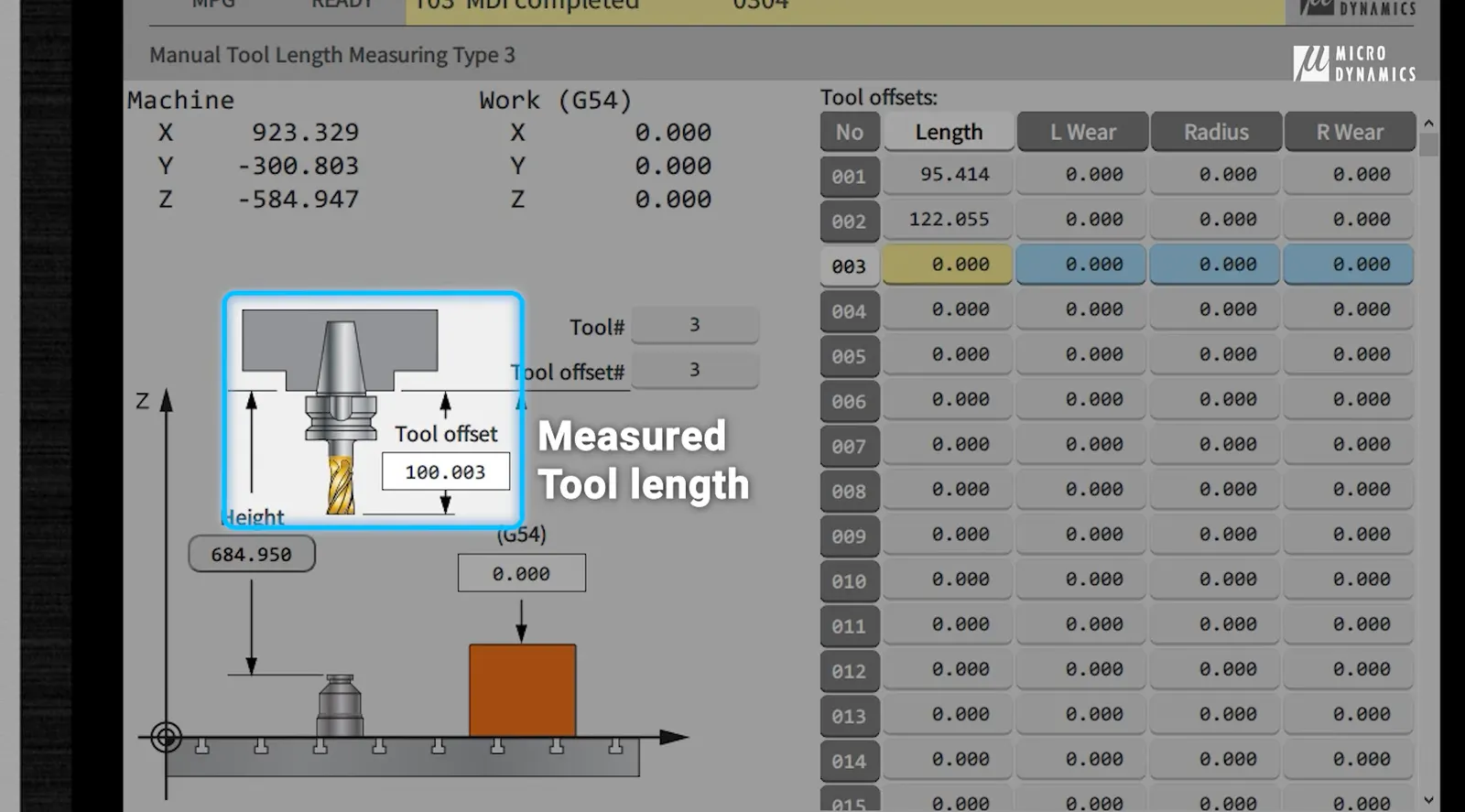
Press "Setting" and enter Z position + tool length, then press "Ok"
The "Measured Tool Length" will show exactly the tool length that you're calibrating with
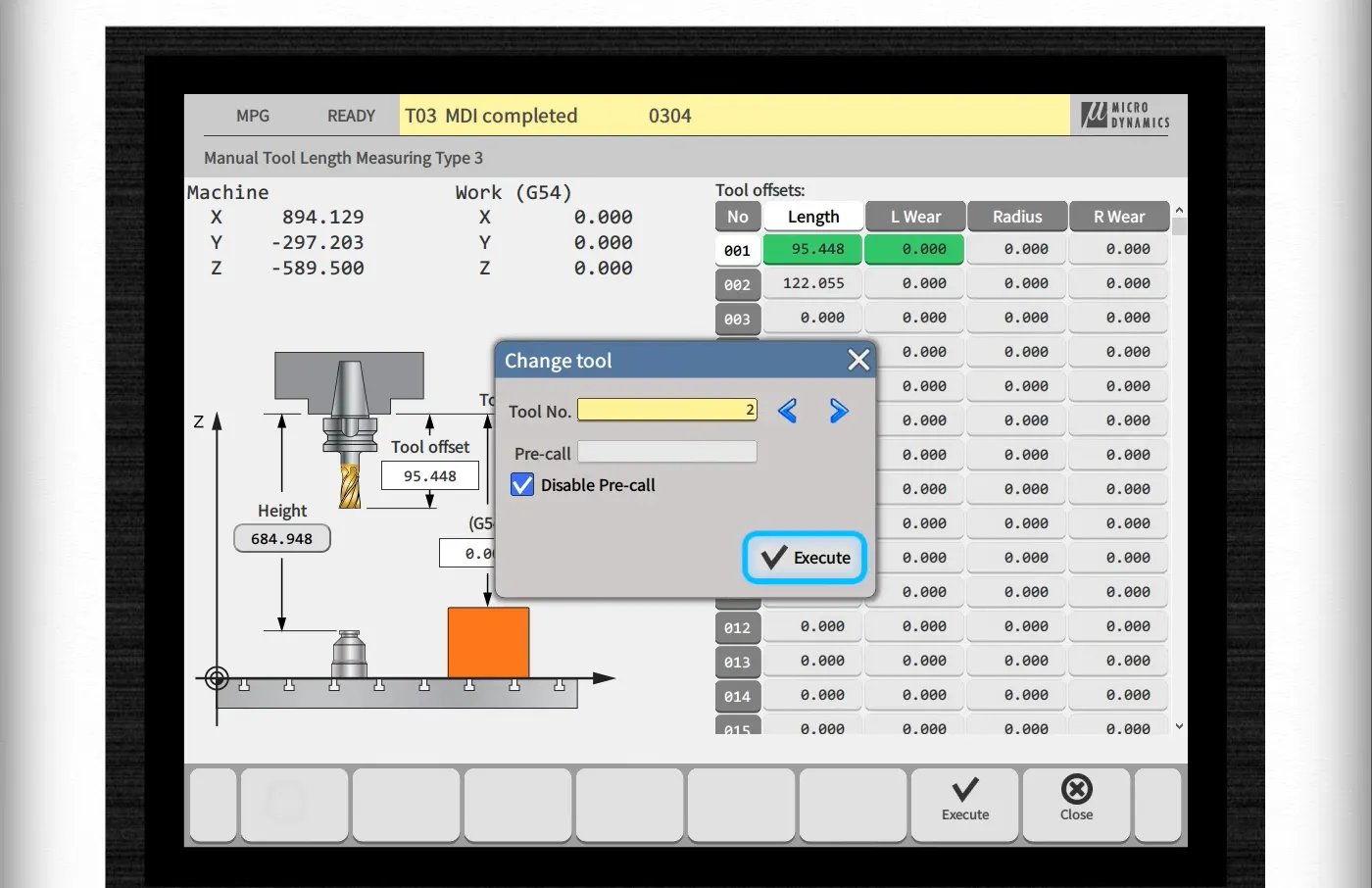
Measure the rest of your tools by changing tool one by one
Moving them to the gauge with MPG
Click "Measure" and you'll see the measured tool length.

This flexibility ensures consistent measurement workflows across different setups and machine configurations.


Flexible Measurement Strategies


Different shops measure tools differently, and our system supports that.

Operators can choose to measure:


  • From tool tip to gauge

  • From tool tip to table or workpiece

  • Using offline tool setters and transferring data


The HMI supports multiple measurement approaches, making it adaptable to real-world shop preferences and existing processes.


Why This Matters on the Shop Floor


Tool setup directly affects:


  • Part accuracy

  • Cycle time consistency

  • Tool life

  • Operator efficiency


By integrating tool setup into a unified HMI workflow, Micro Dynamics eliminates unnecessary steps, reduces setup errors, and ensures every tool is measured correctly before cutting begins.


Conclusion


The Micro Dynamics Tool Setup HMI is designed with one goal: make precision effortless.

From simple installation and automatic measurement to breakage detection and manual fallback modes, every part of the workflow is built for real machining environments: fast, intuitive, and reliable.


No unnecessary complexity. Just complete control over your tools.


Comments


Home_rotation6.png

Copyright © MICRO DYNAMICS. All rights reserved.

bottom of page